Showing posts with label Cricut Explore. Show all posts

Tuesday, October 14, 2014

Designing Tags in Design Space


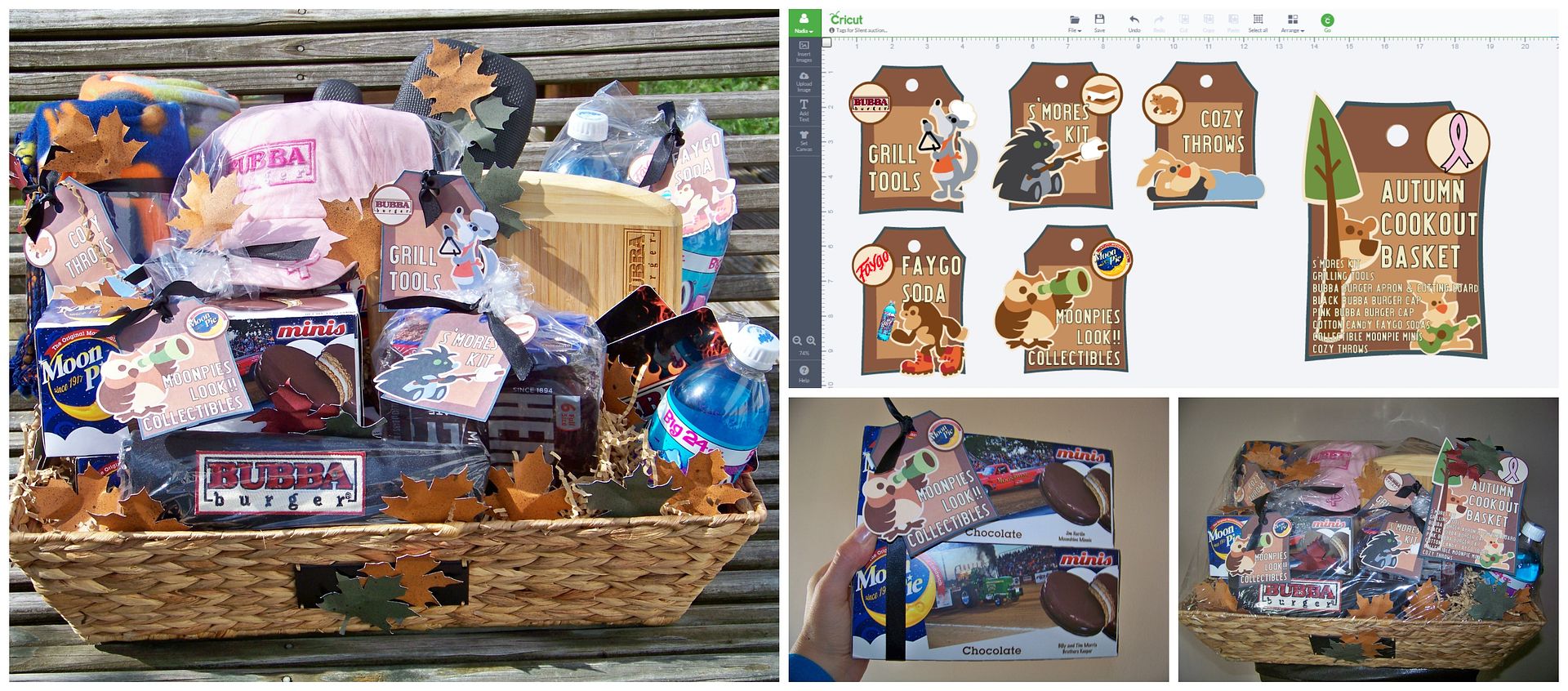
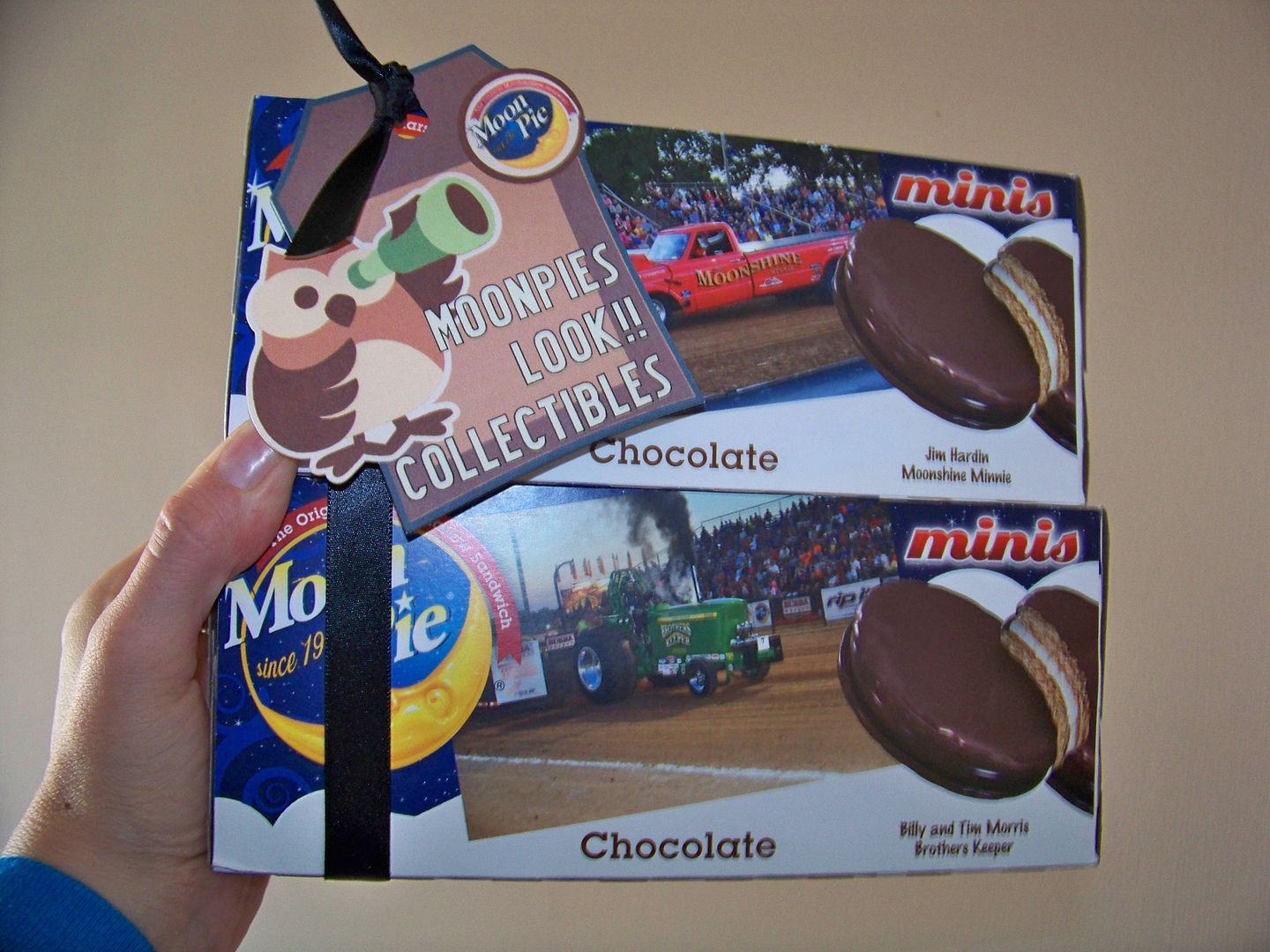
I was able to do some crafting this weekend in preparation of a Susan G. Komen for the Cure fundraising event.  One of the events is a silent auction at a truck and tractor pull so I decided to put together a Cookout Basket for a personal (non-company) donation.  I bought some items and I used some sponsor swag that I had in the office that I have been hoarding for months to use.  The items were kind of uncoordinated in color and style so I wanted to create a theme to make them work together in this basket.  Fall colored throws, a pink hat, bright blue soft drink bottles, wood and metal grilling tools... you get the point.

I decided on an autumn theme and used a natural colored basket.  I created tags to group the items and give them a "fall and outdoorsy brand".

The tags were created in Design Space.  I was thrilled to be able to use a website that created palettes for me and offered hex codes for each color.  By having the code, I could change the color of the tags to fit my theme!  There are tons of websites for doing this.  I used this one:  http://www.color-hex.com/color-palettes/ .
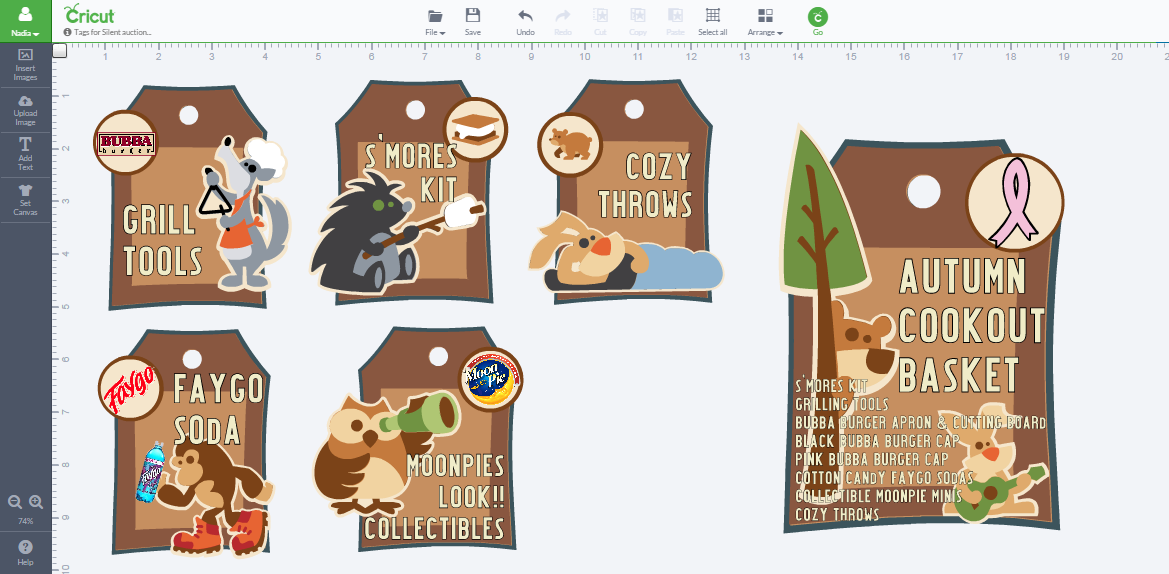


I used the artwork from Campin Critters.  The ribbon image was from Pink Journey.  I was able to use the animal characters and badges from the cart, changing the badges to include imported logos that I created from PNGs.  Because I could insert a circle from one of my images and change the color to match the other badges, I was able to make my own custom badges that matched the others in size and color.  I loved using RGB color codes with my Imagine so getting to use hex codes with Design Space felt familiar and freeing!  And getting to combine imported images to personalize something along with the ease of using Cricut artwork made this such an easy project to do!  What made this extra simple though was the fantastic Cut Then Print feature, which eliminated any need to piece die cuts.  Not only was I able to customize the colors, but I was able to have the image flatten and print.  Then the Explore simply cut around the outer perimeter for me.
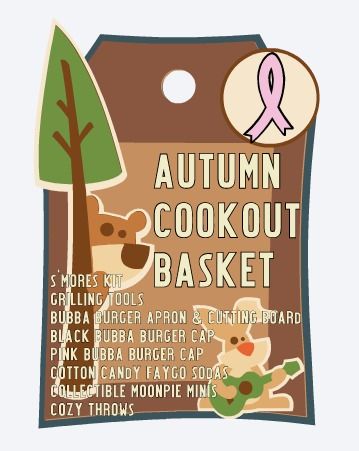

Now, I will say that this was not a fast project... and not because I couldn't figure it out or had trouble searching for something or was slow at making decisions.  No... it was slow to use Design Space.  Each step required a bit of waiting with the worst of it being the insertion of text.  As you can see, I used a lot of text.

My font is from the Southwest cartridge.  That's a cart I don't own but I bought this font because it was the closest to a system font I wanted to use, and system fonts sometimes don't save (for some reason on some fonts which you aren't warned about ahead of time).  At these unpredictable times, DS can't "find" the font and it replaces it.  Since this was an important project that I knew I would want to save for future reference, I chose instead to use a Cricut font.  I do look for these issues to be corrected with future Design Space updates.  I mention it here for full disclosure in the event that you are planning a similar project!

I used dacron to raise certain elements in the basket and natural colored shred to hide the dacron and add to the fall coloring.  To bring more fall colors in, I cut a ton of leaves from Designer's Calendar, crushing then spritzing them with black ink.
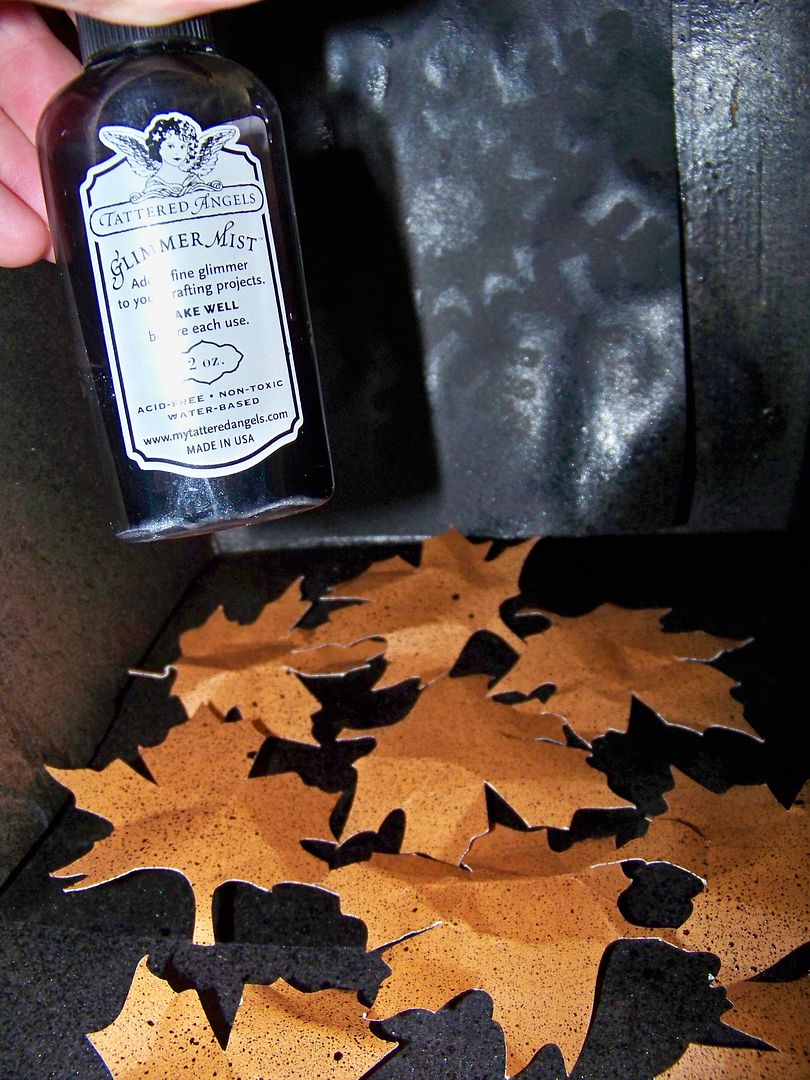
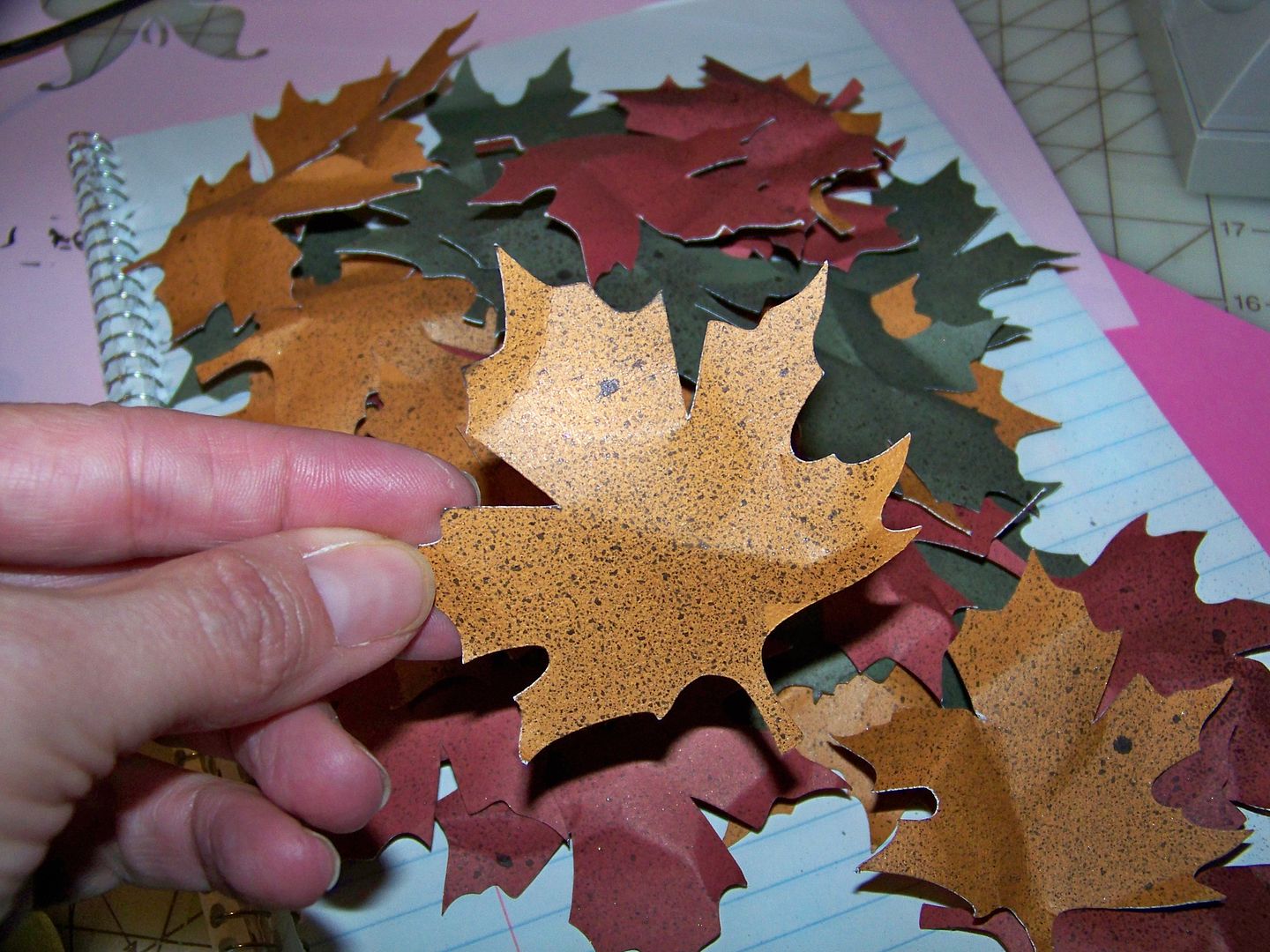

I added them in and attached leaves to some of the items.
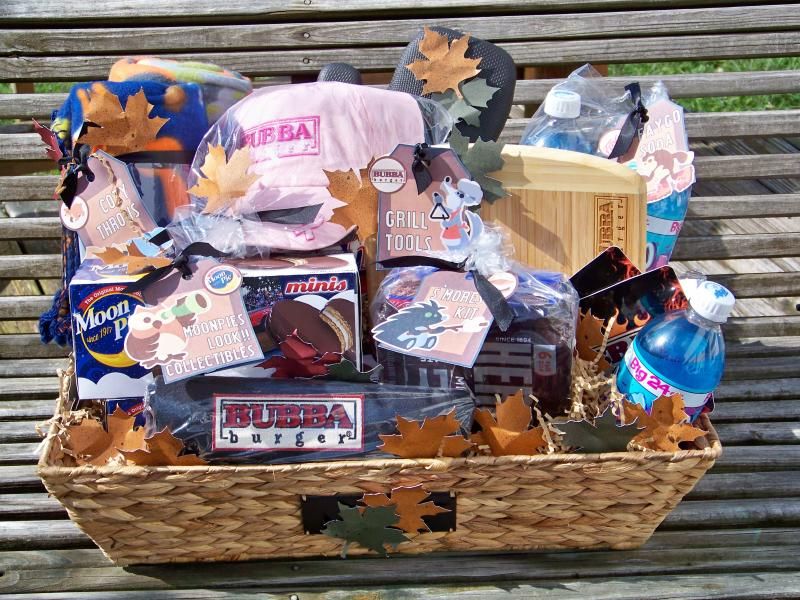

And once I added heat shrink wrap, and the large outside tag, my basket was ready to donate.  The heated wrap, if you are not familiar with it, uses the heat of a hair dryer to shrink it down tight around the object it covers.  This holds all the basket items in place and keeps those leaves from floating away as well.  At this outdoor fundraiser, it is a must!  I found it in a roll at Michael's crafts.
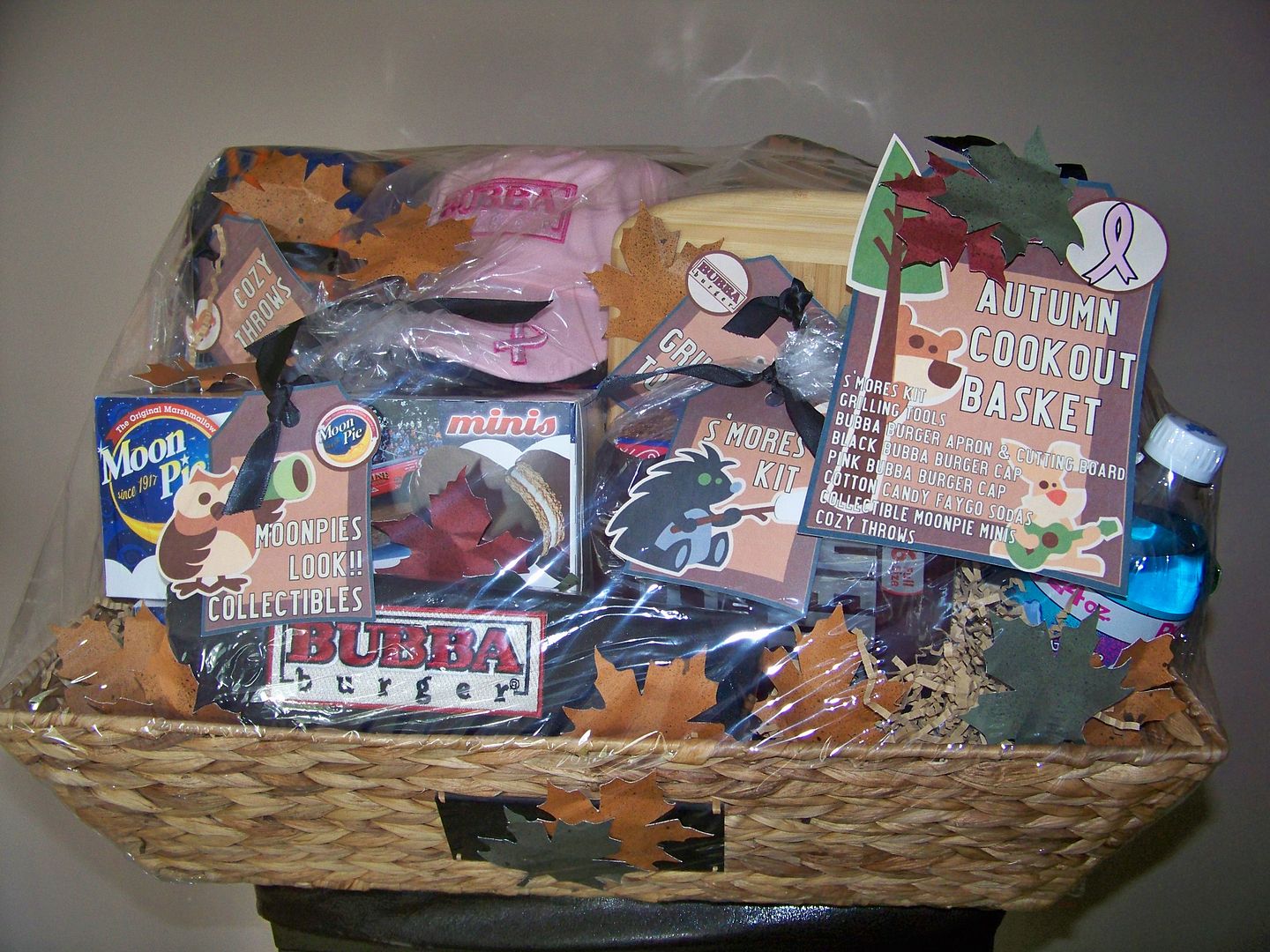

Hopefully the guys will bid on it!

Friday, April 11, 2014

Explore: Making Monograms from PNGs Plus Other Tips!


Wow!  Has this been fun  playing with the new Cricut Explore or what!?  The projects here are ones I was never able to make in the past with my Cricut die cutters because previous machines did not allow for the use of imported files.  What I like most about the Explore, and what makes it different from every other cutter on the market, is that now you can cut and join imported files with cartridge images.  The Explore also has a dual housing carriage which allows the machine to cut as well as draw and emboss on the same mat without removing the mat from the machine--- and it prompts you to put in a pen or embossing tool as needed!  

So this post is all about what I have learned this week after more experimenting. In this post, I have tips for: 
  • How to make monograms using a free service from Mark and Graham.
  • How to use the Windows snipping tool to make a .png file of your Mark and Graham monogram.
  • How to attach writing to a cut piece on the same mat.
  • Which pens work in the Explore for writing.
  • How to make notes on the mat in Design Space.
  • How to cut fabric with the Explore. 
I am loving the energy and excitement around the Cricut brand-- it has been a long time coming!

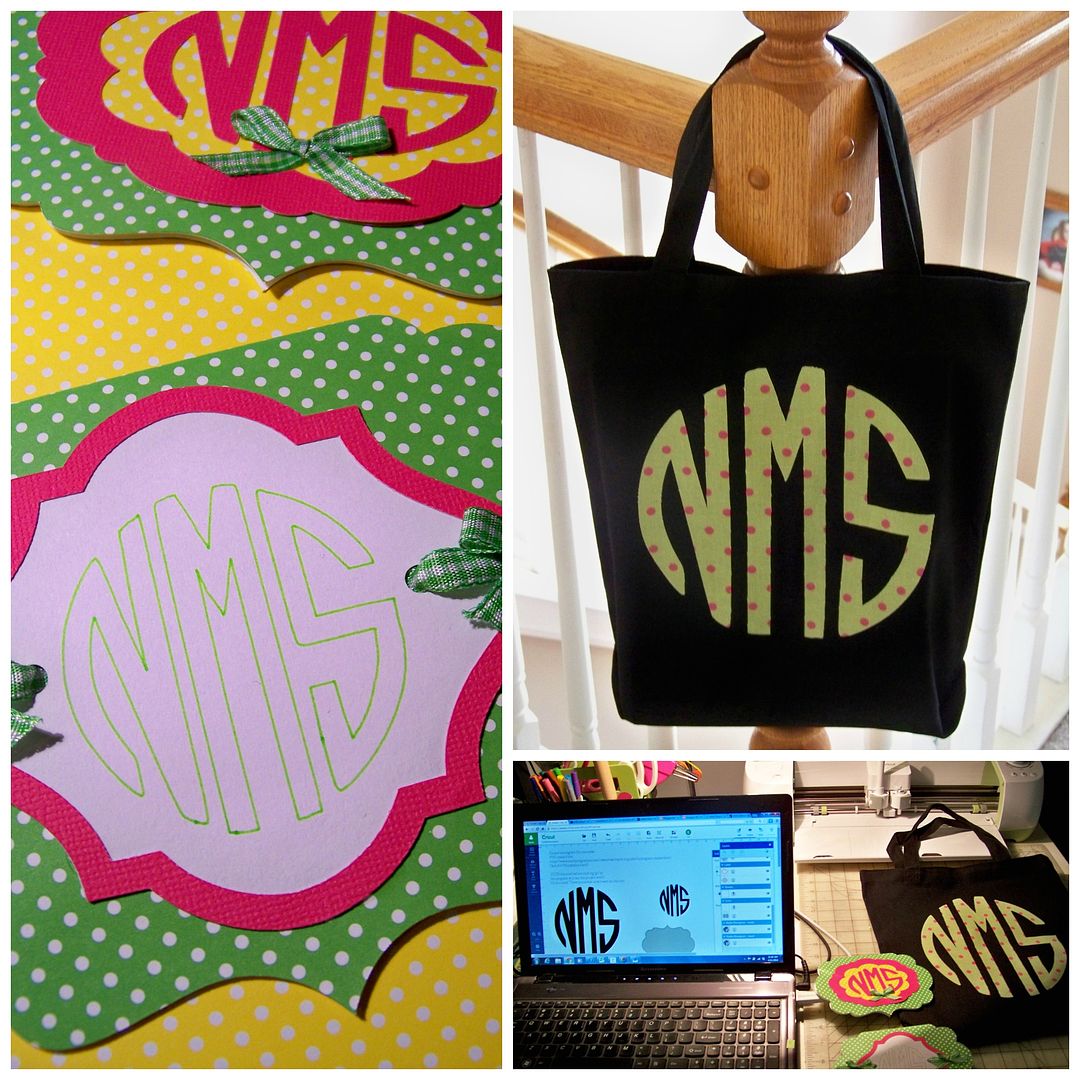
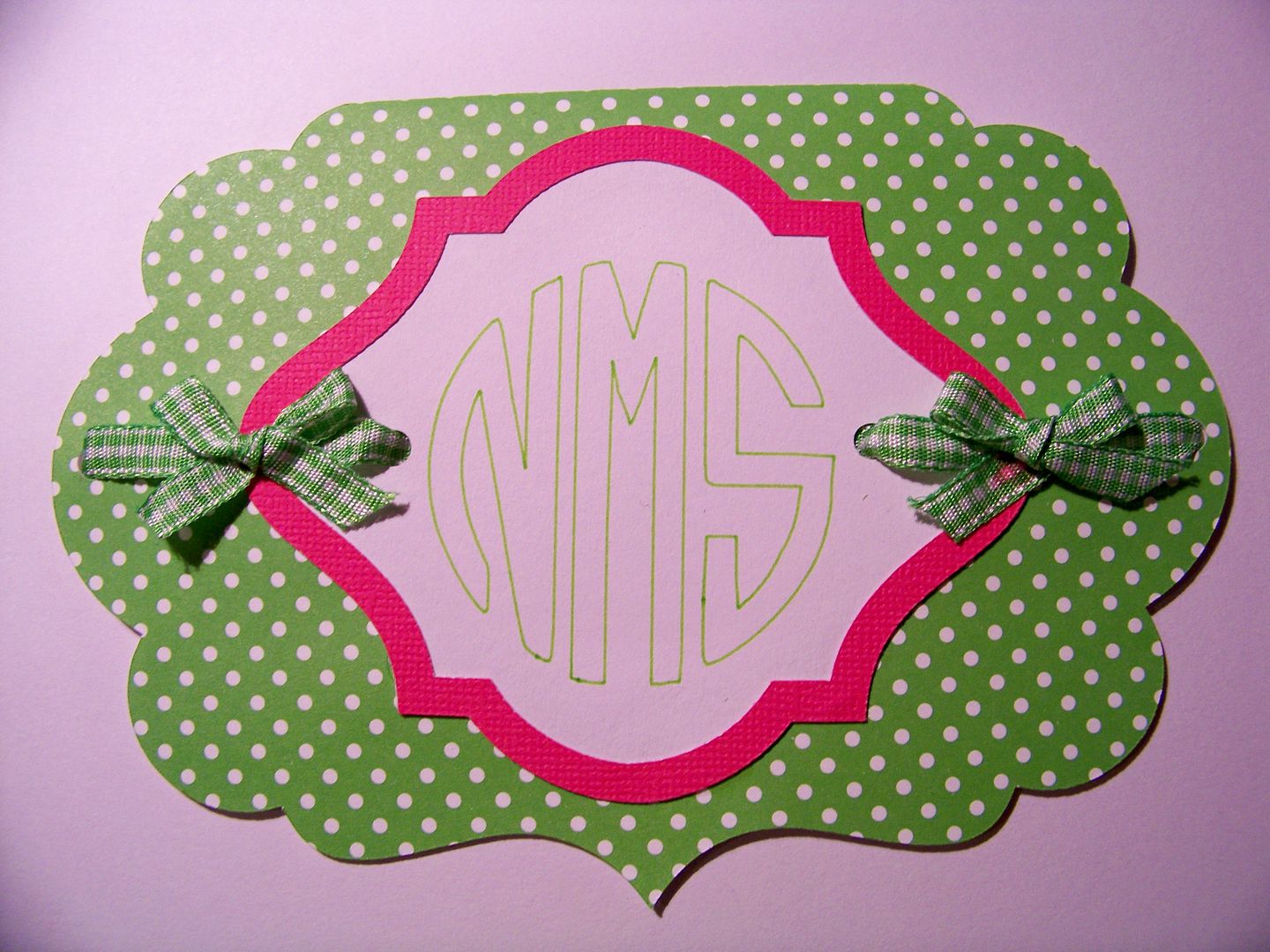
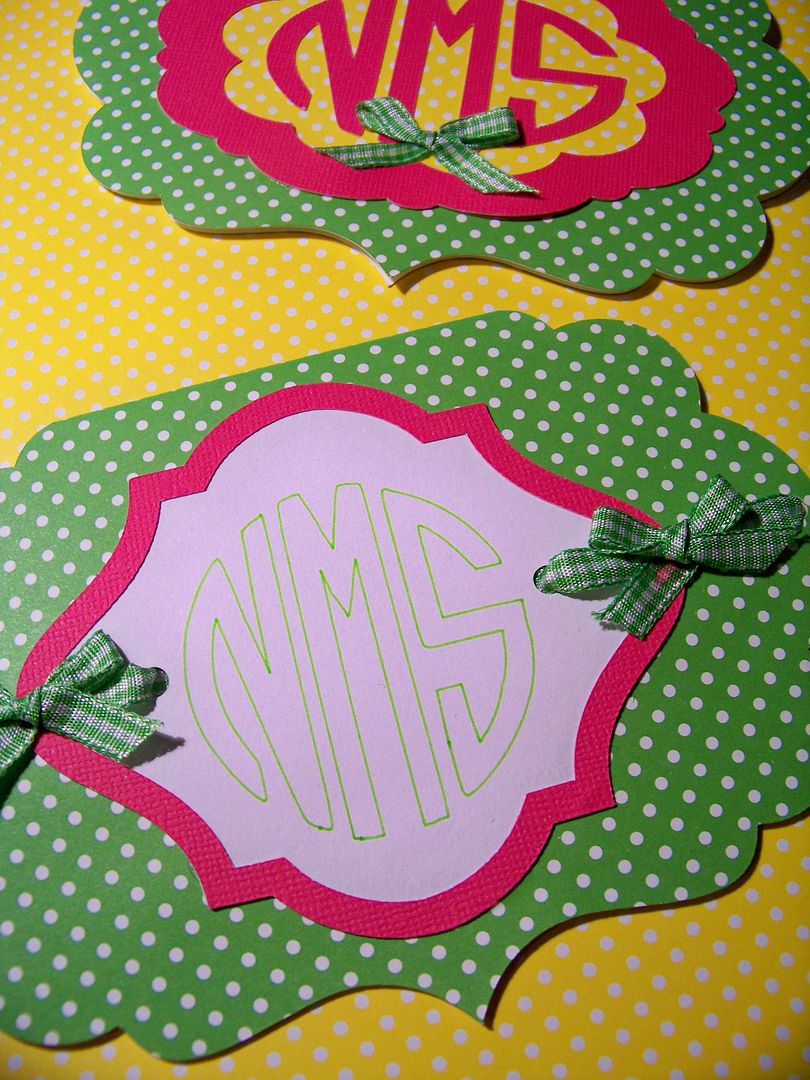
For this card, I made a monogram online and imported it to Design Space.  I used the handwriting option to put the monogram on the card.  I assembled the card as usual.  


How to make a monogram (and how to work with and cut a png file in Design Space!):
(This section was last updated 7-9-15)
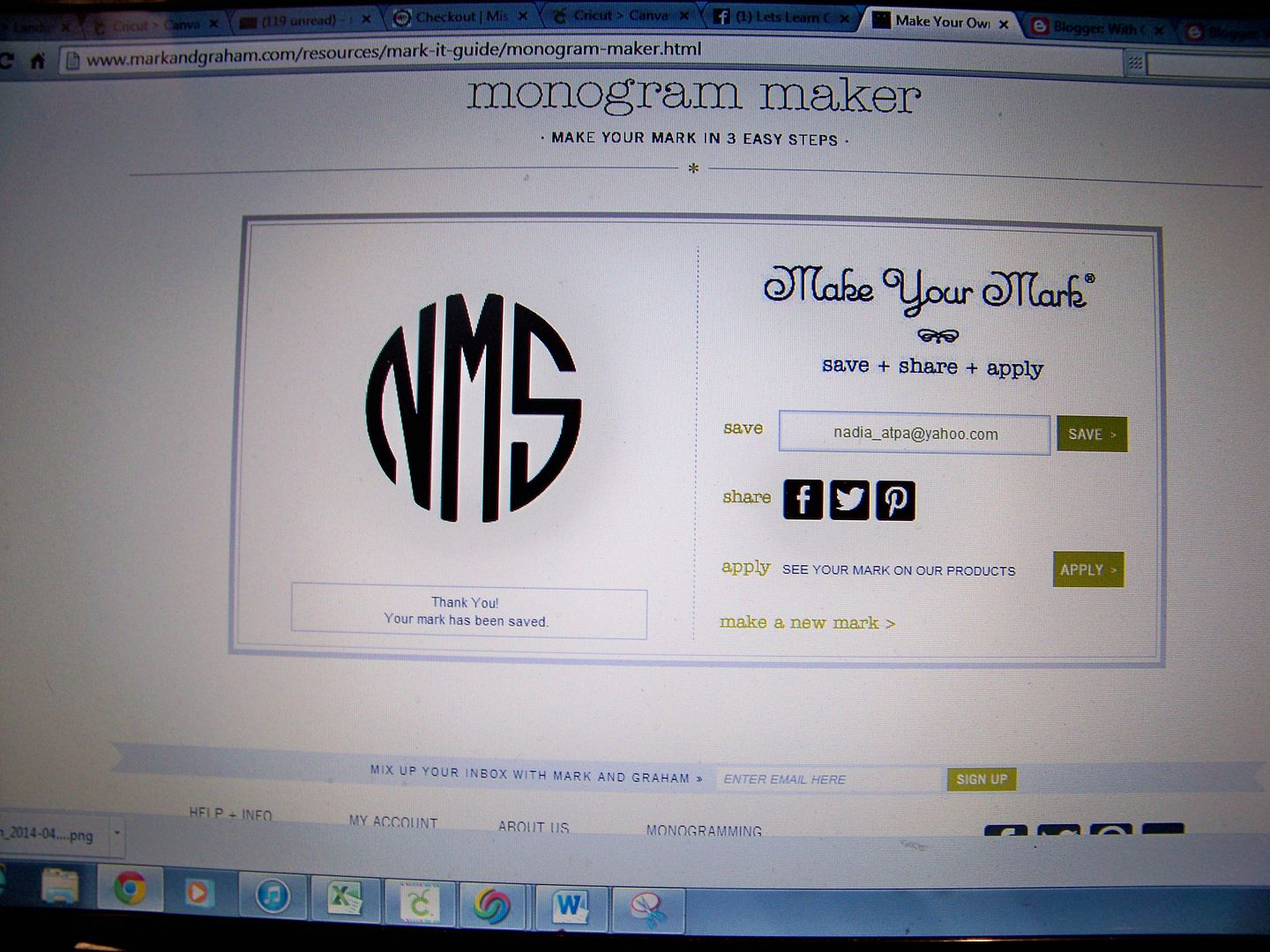
  • Go to Mark and Graham (click here) to create a .png file of your monogram.  (Thank you to Sara Brauer for sharing this link on Facebook!  It is an awesome tool for anyone with a die cutter that can cut .png files!)
  • Enter your initials.  The program will re-arrange the letters so the last name initial is in the correct place.  Select the style you like-- there are twenty-seven to choose from!  
  • You will see a preview.  
    Now, at this point, you can click save+share and it will be emailed to you, but honestly, it takes a while to get the email and some of mine were never emailed so instead I do this: 
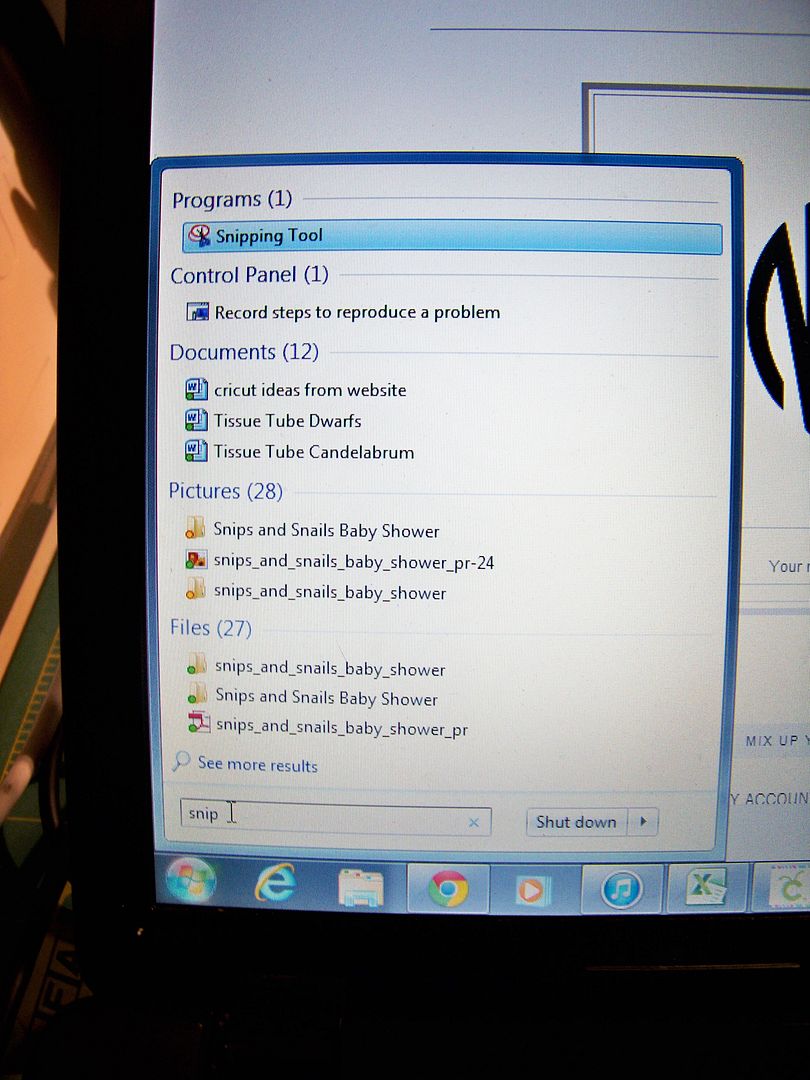
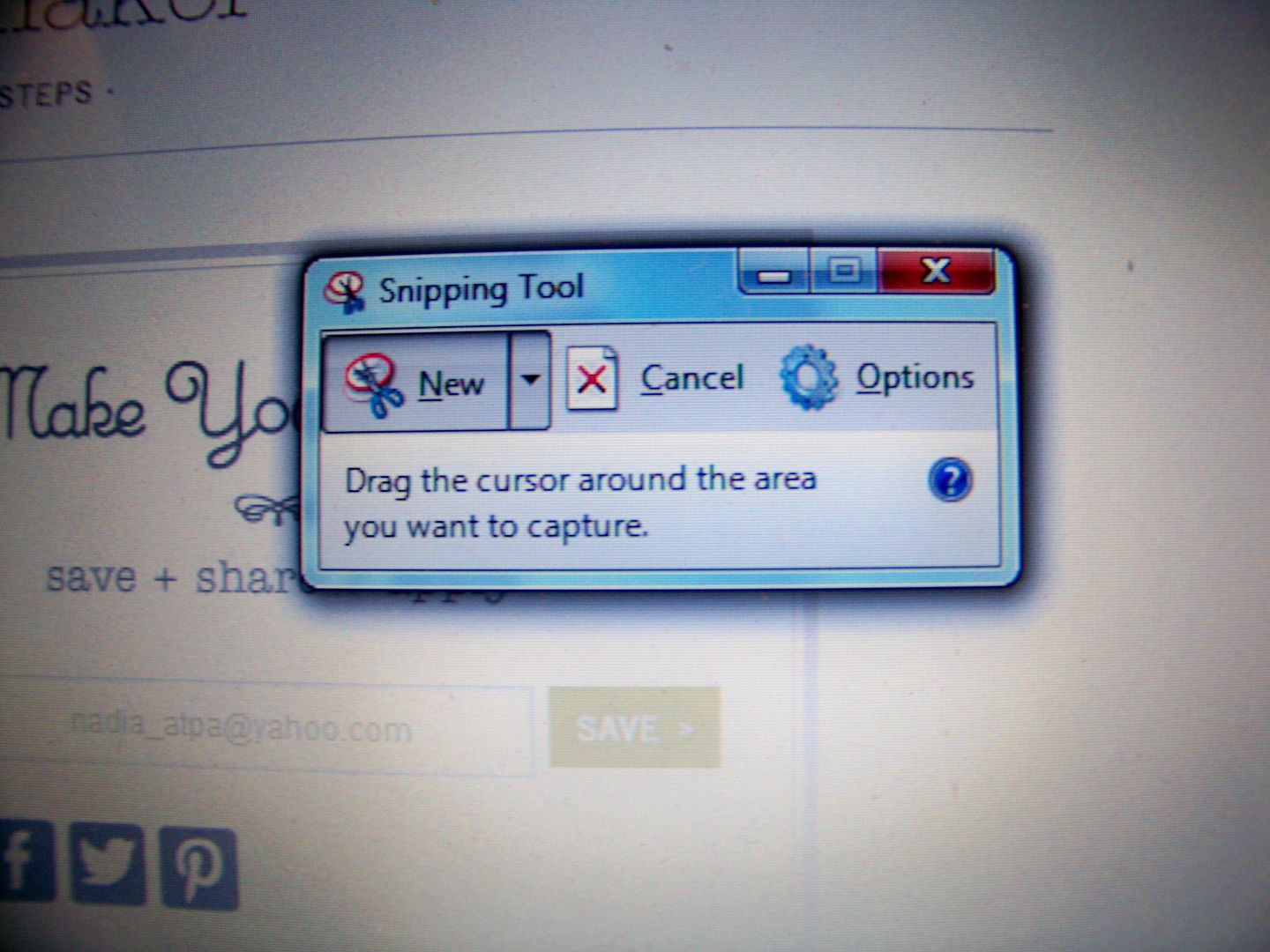
    1. Use the Windows snipping tool on your computer (click start and in the search box type 'snipping').
      The snipping tool allows you to screen shot anything so you can make it a png file that you can use with your crafting!  Simple black and white images are ideal for use with Design Space!
       
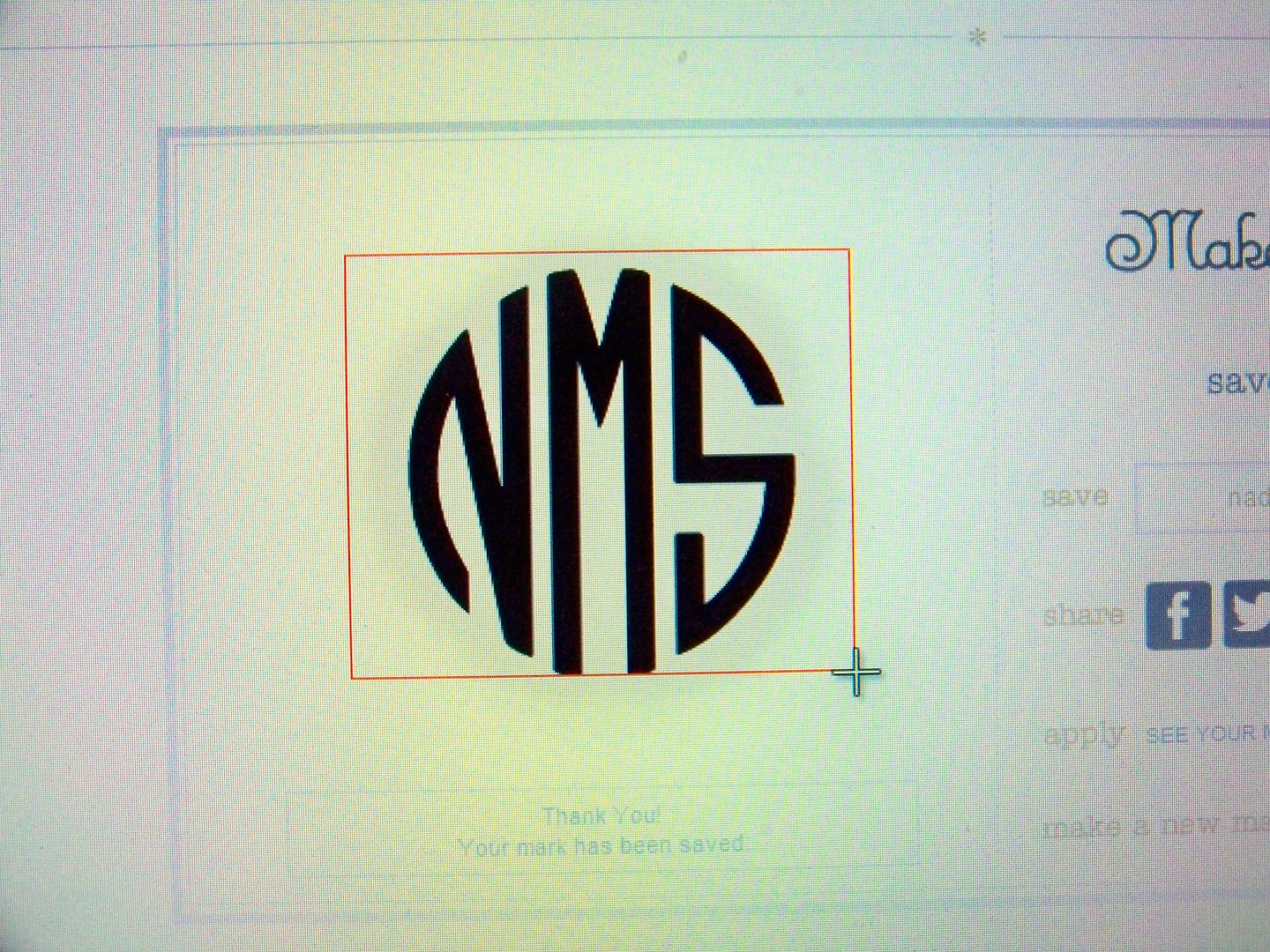
    2. A little box will pop up and you can highlight the monogram.  
       
    3. A box will pop up with your monogram in it.
       
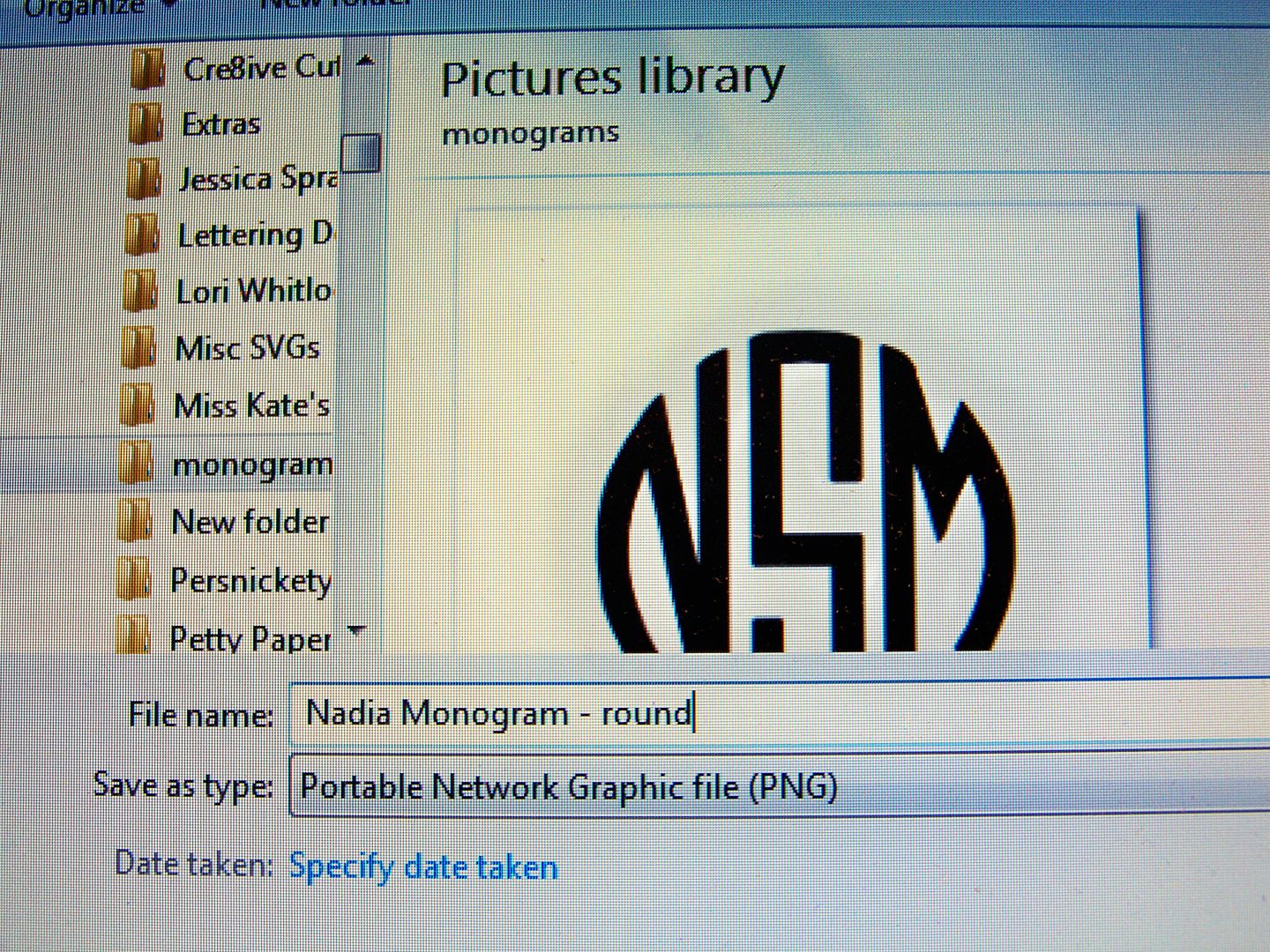
    4. Click file, Save As.  Choose the location you want it saved in on your computer, name it, and see that the saved file type is PNG (default). 
    5. Now you have your monogram ready to import into Design Space

  • Go to Design Space and sign in.  Select File then New.


  • Select Upload Images from the sidebar.


  • Select Basic Upload.


  • Select browse and find where you saved it previously.


  • Select the file and click Open.


  • The file shows up on the screen with a checkerboard around it.  The goal is to have that checkerboard in ALL the spaces except your design!  Select Simple Image.  Then click Continue.


  • Click on the space around your image and the checkerboard appears around all of the letters.  This is exactly the way you need it....


  • You can test it to be sure that the red outline shows only what you want to cut!  Click on the preview button...


  • Like this.


  • Select continue and your image, outlined in red (the cutting line) will appear. Change the image name if you don't like what it is named as a default and any tags you might want.  Click save.


  • It will look like this as it saves...


  • Your image now appears in your library of images.


  • You can use it as you would any image there by clicking on the image and clicking on Insert Images.


  • Then your image will be placed on the design mat in Design Space for you to use as you wish!


This section last updated 7-9-15.


How to Put Notes on Your Design Space File:

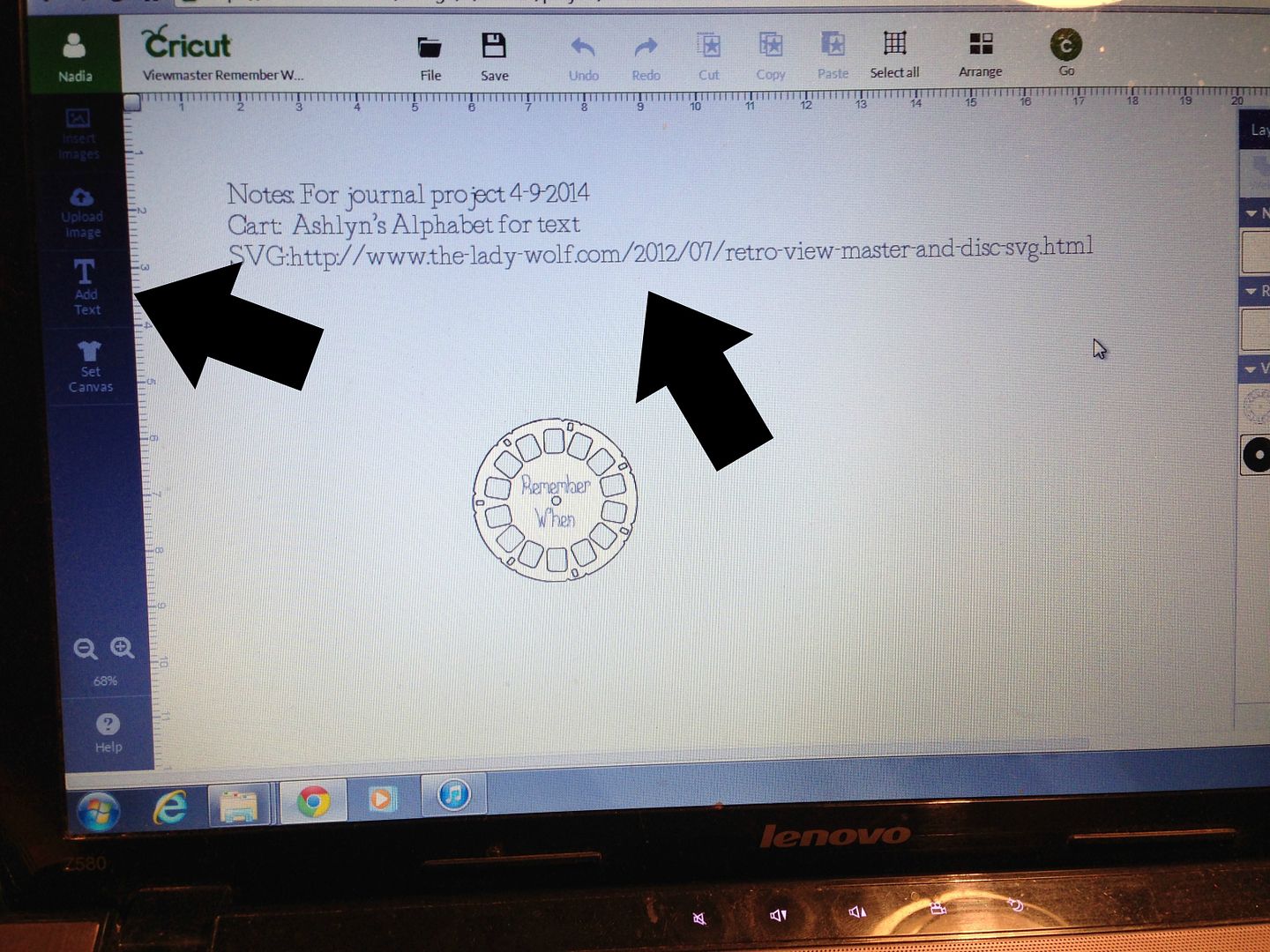
After I make a project file in Design Space, I like to add a note on the mat so that I can remember where I got the image (cart names, SVG locations, and any other note I want to make).  To do that, you simply click 'add text' like you would if you wanted to add text to a project.  I like to edit the text to 'handwriting style' and I use Cake Basics, but you should use one you have.  I resize the text box to my mat.  Remember to hide the text box before hitting go or skip mat if you forget.  (Choosing a text you have will keep the program from trying to get you to buy it if you forget to hide it.  Remember that if your text box is too big and you forget to hide it, the program will tell you your project is too big for the mat!!)


How to Attach Text on an Image:


  1. Insert your cuts from imported files or from Cricut cartridges in Design Space.  Size it for your needs.
  2.  Ungroup if it is a grouped image.
  3. Click Add Text from the panel on the left.
  4. Edit to change it to handwriting style and choose a font.  Size it to your project.  You don't have to use a handwriting font, but other fonts will only draw the outline of the lettering, not fill it in.
  5. Highlight your cut with the writing and click 'attach'.
You can check that it is done correctly by clicking 'go' and looking to see that the handwriting is on the same mat as the cut.  OfficialCricut is the very best place to look on Youtube for great videos, including the one for "Attaching".  If this is still confusing to you, check out their video (click here).  

Pens for Drawing with the Explore:

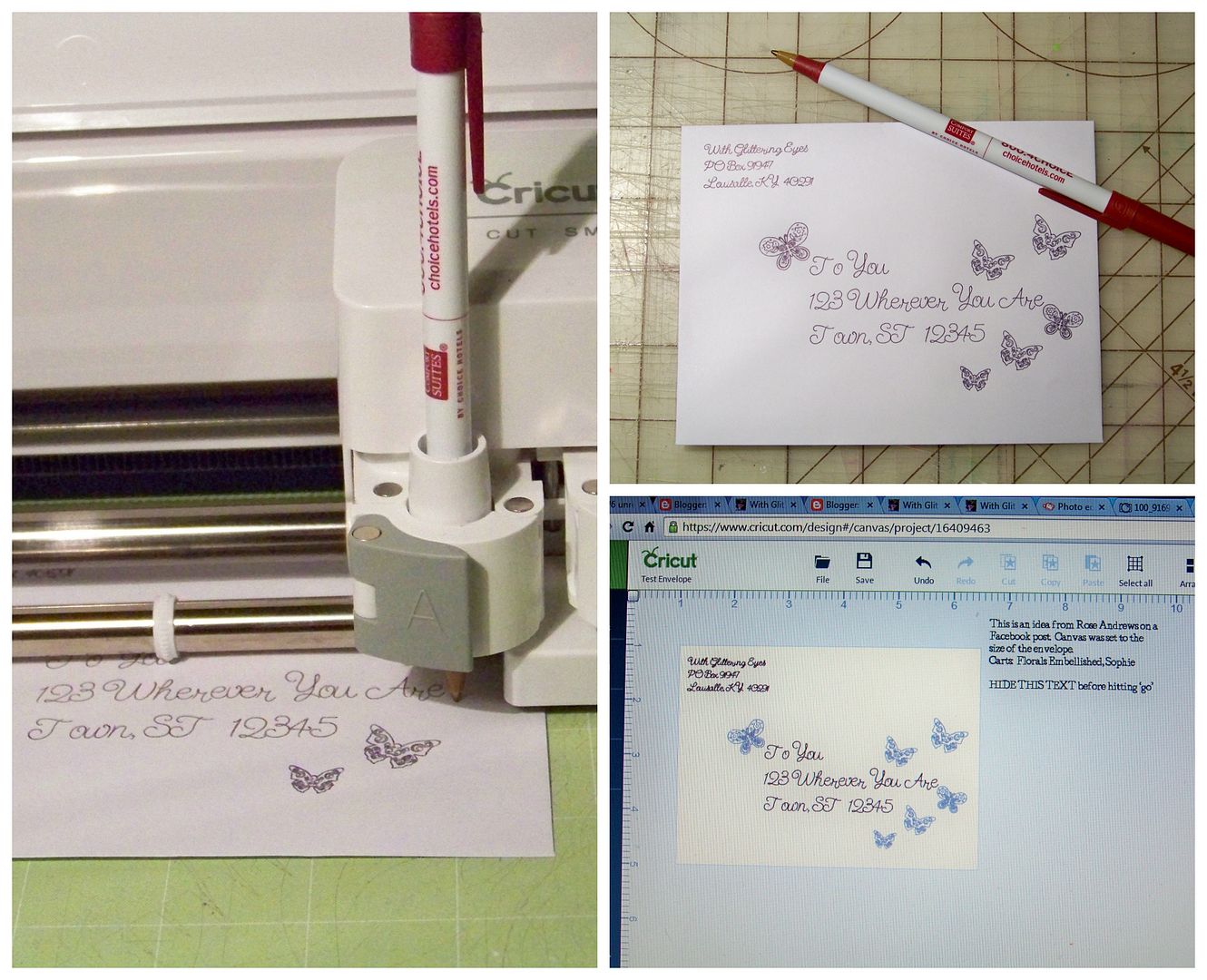
There are several pens on the market that fit into the Explore.  Aside from Cricut brand, these will also fit into the pen housing and draw in the Explore.  I haven't tested all of these; they come as recommendations from other Explore owners:
  • American Crafts Slick Writers and Precision Pens
  • American Crafts Metallic Marker Fine Point
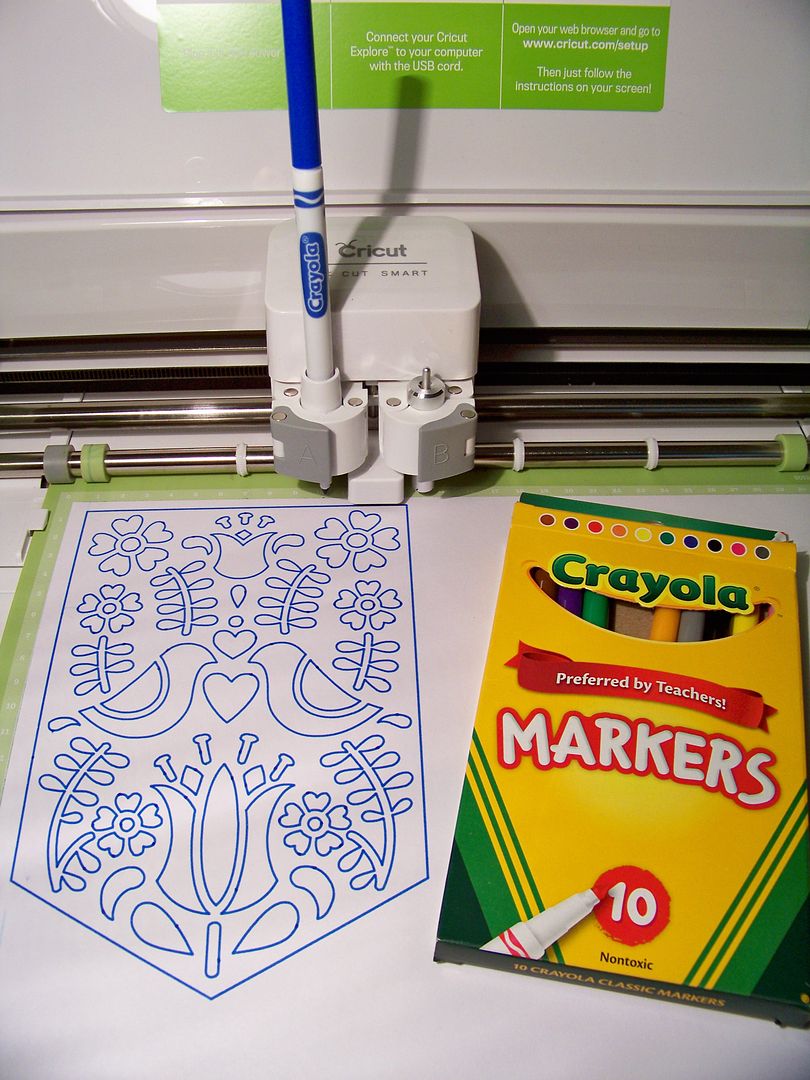
  • Crayola Fine Line
  • Recollections Fine and Medium Point (bold does not work in the Explore)
  • Pilot Precise V5 roller ball pens
  • Bic Ballpoint 
  • The Write Dudes Infinity Neon and Accent Pens
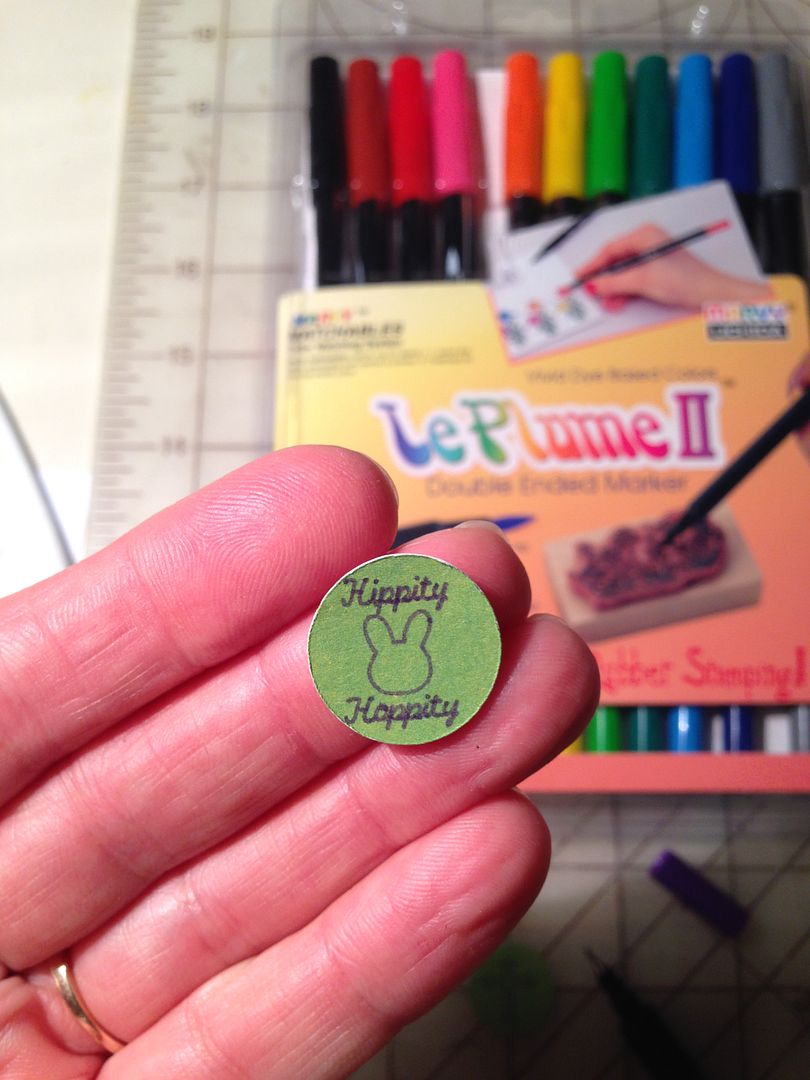
  • Marvy LePlume II (for ultra fine tip)  I used these pens for the 3/4" tags that I put on the bottoms of Hershey kisses.  They write very tiny text!  They are available in 108 colors and are my very favorite ultra fine pen to use!
I will continue to add to my list but only update it on my PEN OPTIONS page, which you can find by clicking here!  Be sure to check it out!  
Marvy LePlume II for super tiny writing.
This is the BIC pen!  Writes even finer than the Marvy LePlumeII.  It has to be this style, not the kind with the clear barrel.  Since it can't bleed, you can use it for designs that get traced multiple times, like these butterflies
 

Crayola Fine Line

How to Cut Fabric with the Explore:
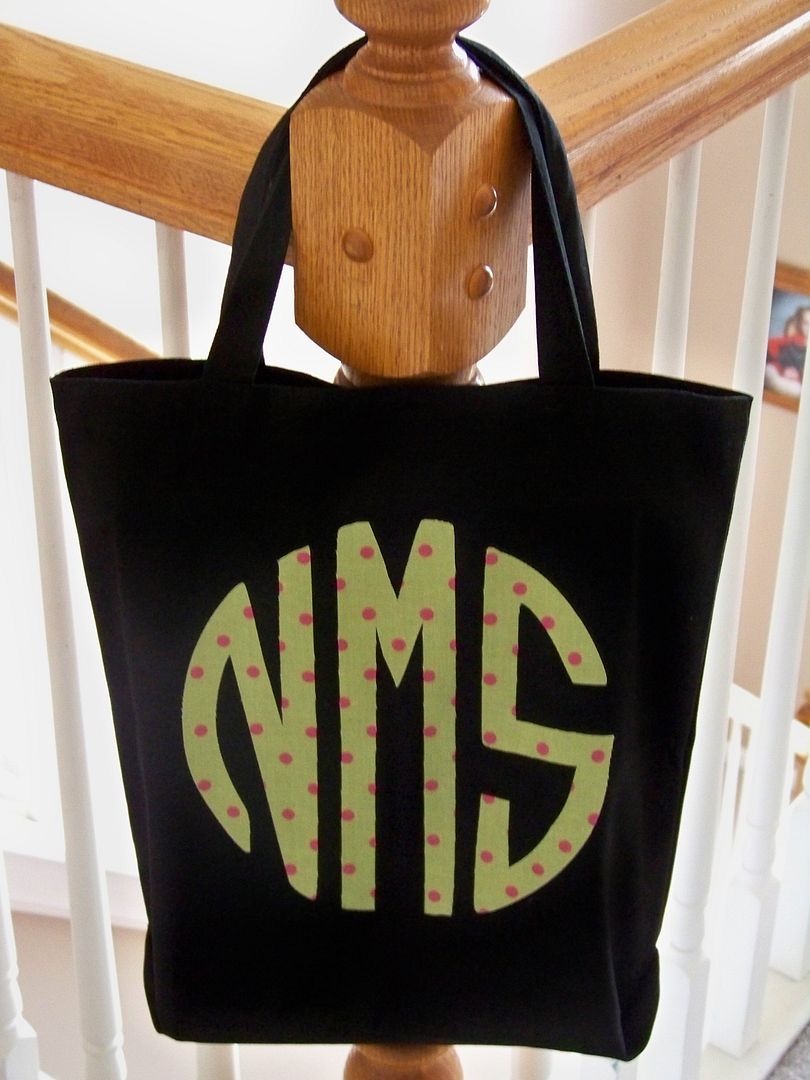
I have been experimenting with cutting fabric on the Explore.  For this bag, I cut fabric using my same monogram image.
  • Iron your fabric to prepare it.  Set the iron for the fabric and use steam if that is appropriate for the fabric you have chosen.  If it is something that will be washed in the future, you are advised to pre-wash it to shrink it first.
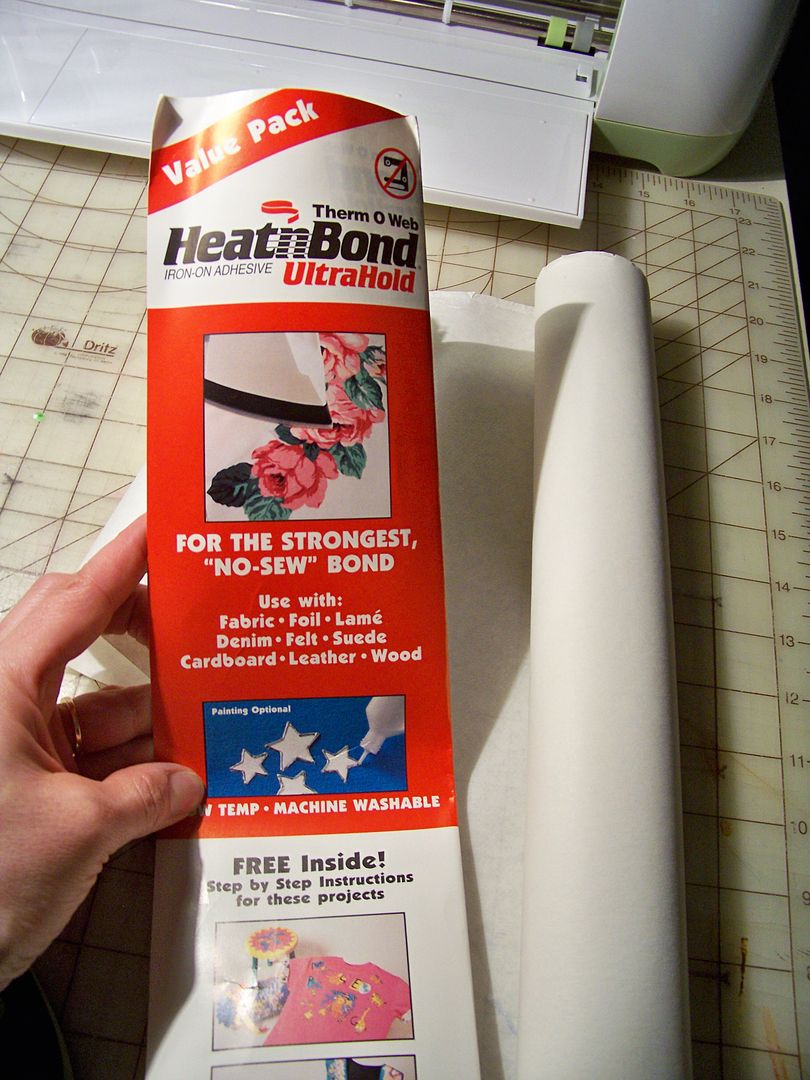
  • Press with your iron HeatnBond Ultra Hold to the wrong side of your fabric.  
    "Press" is different from "iron" in that you will lift and lower your iron and not move the iron over the fabric, risking a shift of the fabric on the bonding agent.  Don't use steam on this step.  
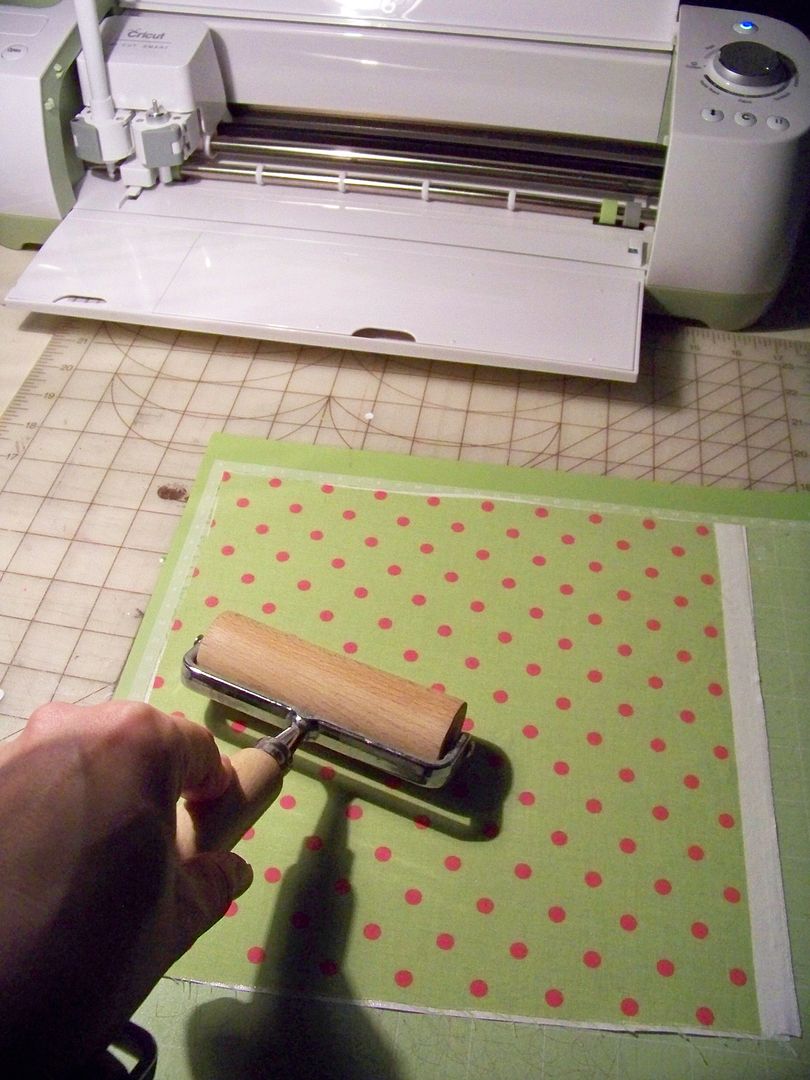
  • Place your backed fabric on a very sticky mat.  I just use a new mat, standard grip, but there is a Strong Grip mat available. I use a brayer to press the backed fabric into the mat.
  • Cut as usual with your explore, selecting 'fabric' on the dial.  If you are using heavy fabric, you can move the dial one notch over (between 'fabric' and 'poster board' and the machine will multi-cut 2).  Felt has its own setting, by the way.  For cutting felt, just select "Custom" on the dial and select "felt" on the drop down box on your screen in Design Space.  The felt setting will automatically multi-cut 2.
  • Remove the cut from the mat, peel off the backing and press to your project.  Here, you can use steam if that is appropriate for the fabrics you are bonding together.  
  • HeatnBond, unlike SteamASteam, is not permanent after fusing.  You are advised to stitch around cut edges for permanent hold.  HeatnBond, however, is preferred for use as a backing because it is a smooth and even backing!
  • I experimented with cutting felt, backed and unbacked, factory-backed taffeta, and quilting-weight cottons.  They all cut beautifully!  I did use a multi-cut when cutting the felt, but for all fabrics, I used the standard blade housing, NOT the deep cut.  I also used the Standard Grip Mat.
____________________________________________________


After this week, I do have a new set of "wishes" for improvements to Design Space and the Cricut product line.  (You can see my first list on my previous post- click here.)
  1. We need a way to center automatically one element onto another.  I would have loved a one-click way to center the monogram writing onto the center of the card since I attached it!  I eyeballed it and it is off a bit.
  2. White gel pens!  Come on Provo Craft, we need gel pens that fit in the Explore-- especially white ones!  So far, I haven't found any on the market.  Glitter pens would also be great!  Use the same concept as the gel pens you sell for the Expression, but put them in a barrel that fits the Explore! Pretty please!! 
  3. I linked 317 cartridges this week.  Some of them just don't show up in the search.  For example, Simply Charmed doesn't show up in My Image Sets, but it does show up in All Image Sets as "purchased" so I know I linked it correctly!  Another example:  Art Philosophy doesn't show up in My Image Sets or in All Image Sets, but the individual images show up in My Images as purchased.  It makes it impossible to find something on purpose for those missing-but-linked carts!  
  4. While linking those carts, I found that George and Basic Shapes and Celebrate with Flourish could not be linked and had to be linked by Provo Craft customer service.  When I called, the rep was very nice, but she told me, "I will do this as a one-time-kind-of-thing."  That made me think it was some special favor but I later found out from my favorite expert that  my George cart is probably blank.  The images were programmed into the Baby Bug and subsequently the Expression and the cart was just a "connection" so to speak.  Once PC realized people were hacking the "connection" with some paper clips, they started creating real George carts and redid the Expression programming.  That's why some people can link their George and some can't. Celebrate with Flourish had a programming error because they misspelled it when it was initially programmed.  So when you try to link it, the title reads it from the card but it doesn't match the one the one in the list of carts in the Image Library.  They did correct that problem too but most people can't link that cart."  So now we ALL know the details-- just need to clue in the Customer Service folks!
  5. Not all of my cartridges could be linked using my Explore.  I was able to link them (except for George and Flourish mentioned above) in CCR by hooking up to my Expression.  Seems like that could be a problem for many people in a couple of months, as I only had a two-week subscription to the Image Library but all those folks with the three-month subscription may have this problem too, if they are like me and never linked carts previously. 
  6. The embossing done by the Explore needs to be deeper or adjustable.  We could use it for form not just function if we could see the embossing, such as in outlining the monogram for cards.  It would be more effective if it were deeper too.
Thanks for checking out my blog!  I would LOVE to read and see what you have been learning about the Explore too!  Let me know or send me to your blog.  And if you find gel pens, specifically white ones that work in the Explore, please share what they are and and where you got them!  Happy Crafting!


Sunday, March 30, 2014

Making Easter Boxes to Get to Know the NEW Cricut Explore!


For many of us, the new Cricut Explore has been the tool we have been waiting for:  a die cutter that allows us to use our cartridges as well as non-Cricut SVGs and other artwork.  My personal Facebook feed has been all about friends using or expecting soon their new Explores!

I have wanted to be able to cut SVGs, and especially the adorable files from SVGCuts!  The very first thing I cut after trying the thank you card project that came with the machine, was an artichoke cut I had on my computer from SVGCuts.  (I have been hoarding free SVGs for a bit).  My next project was a box on Box It Up (a Cricut cartridge) so I could use the scoring stylus.  Then I went straight to SVGCuts.com  to find something fun and seasonal!  I have been making boxes from Cotton Tail Village for the past two days!  These little boxes will be the gift wrap for my Easter gifts!


I did figure out something important that I will share here:  when importing SVGCuts' files with scoring, you have to highlight the cut by clicking on it on the Layers Panel and clicking the "Attach" button.  SVGCuts doesn't use scoring by way of the scoring stylus; their scoring is made with dashed lines cut with the blade.  By attaching the scoring to the shape, it will avoid having it on a separate mat!!  The cut image on the screen in Design Space changes from color to black and white and the scoring looks a little strange.  When you re-color the shape, the scoring looks normal again.  It creates perfect scoring!  And don't forget:  You have to resize each cut.  SVGCuts includes a guide sheet that gives the width for each cut group.


Changing that on each will ensure that you have a perfectly-sized project at the end.  Many of us are hoping that Cricut will have some adjustments made in the programming, one of which is to have SVGs import at native size.  At this time, it does not and that is why it is important to resize.

I did open up the new cutting mat that came with the machine.  It is the first time that I have tried the new ones and, of course, it was too sticky for me.  I like to save new ones for projects where I need sticky mats (like fabric, wood, and chipboard) so I got out the old one I use all the time and my brayer.  What can I say, you can lead a horse to water but you can't make him drink; I like barely sticky mats and so that's what I use no matter how innovative or nifty the new ones are!


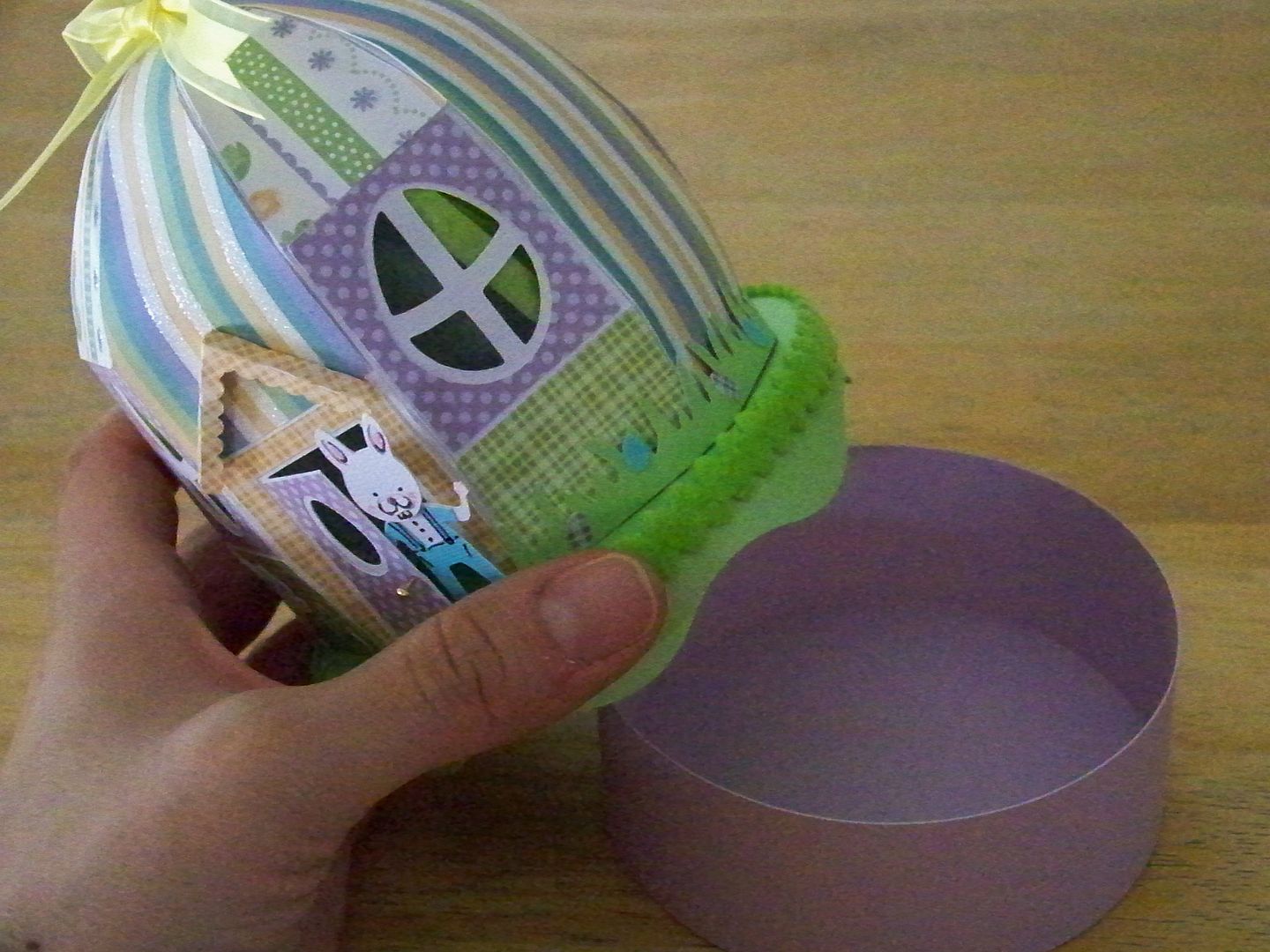
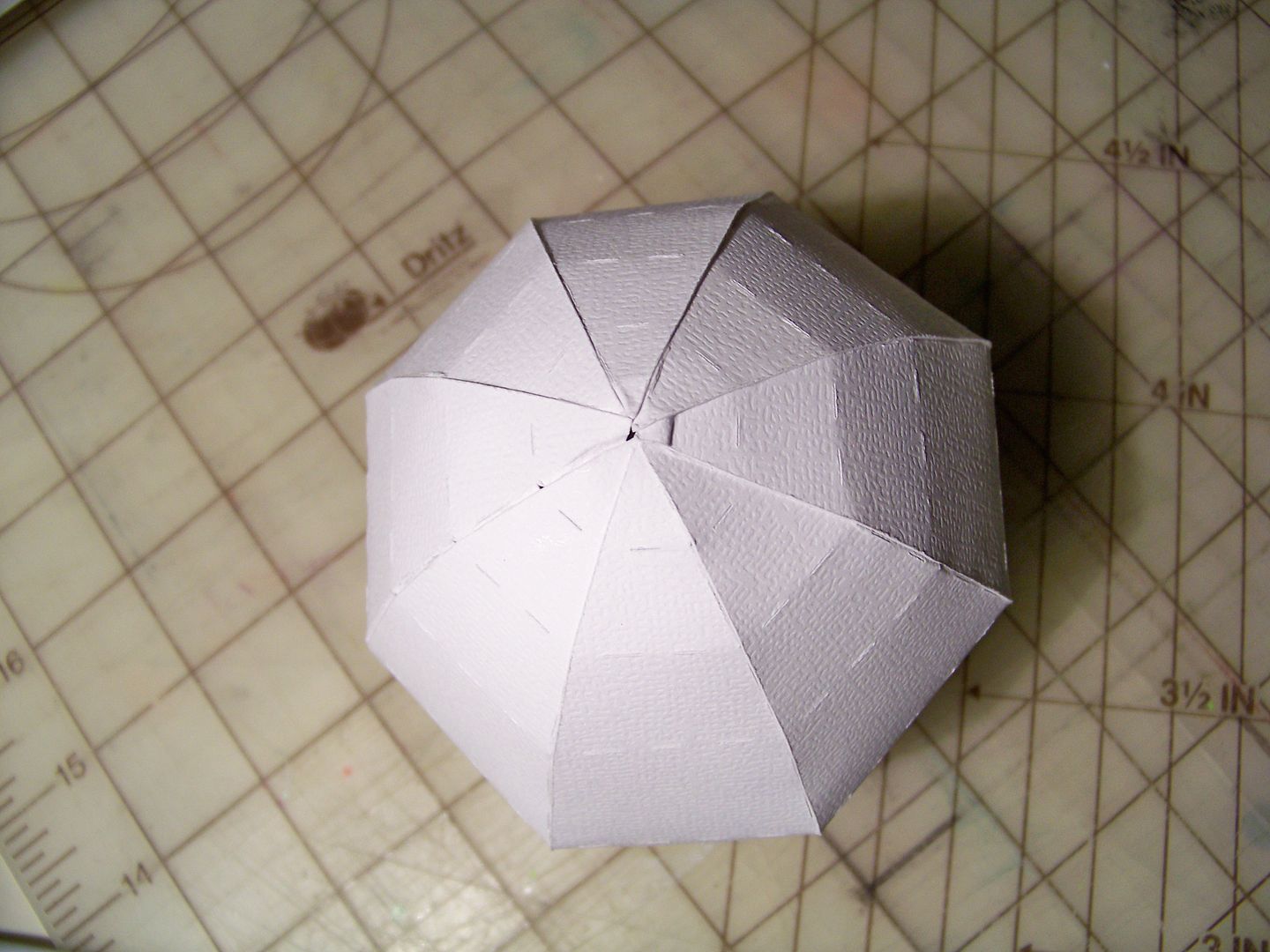
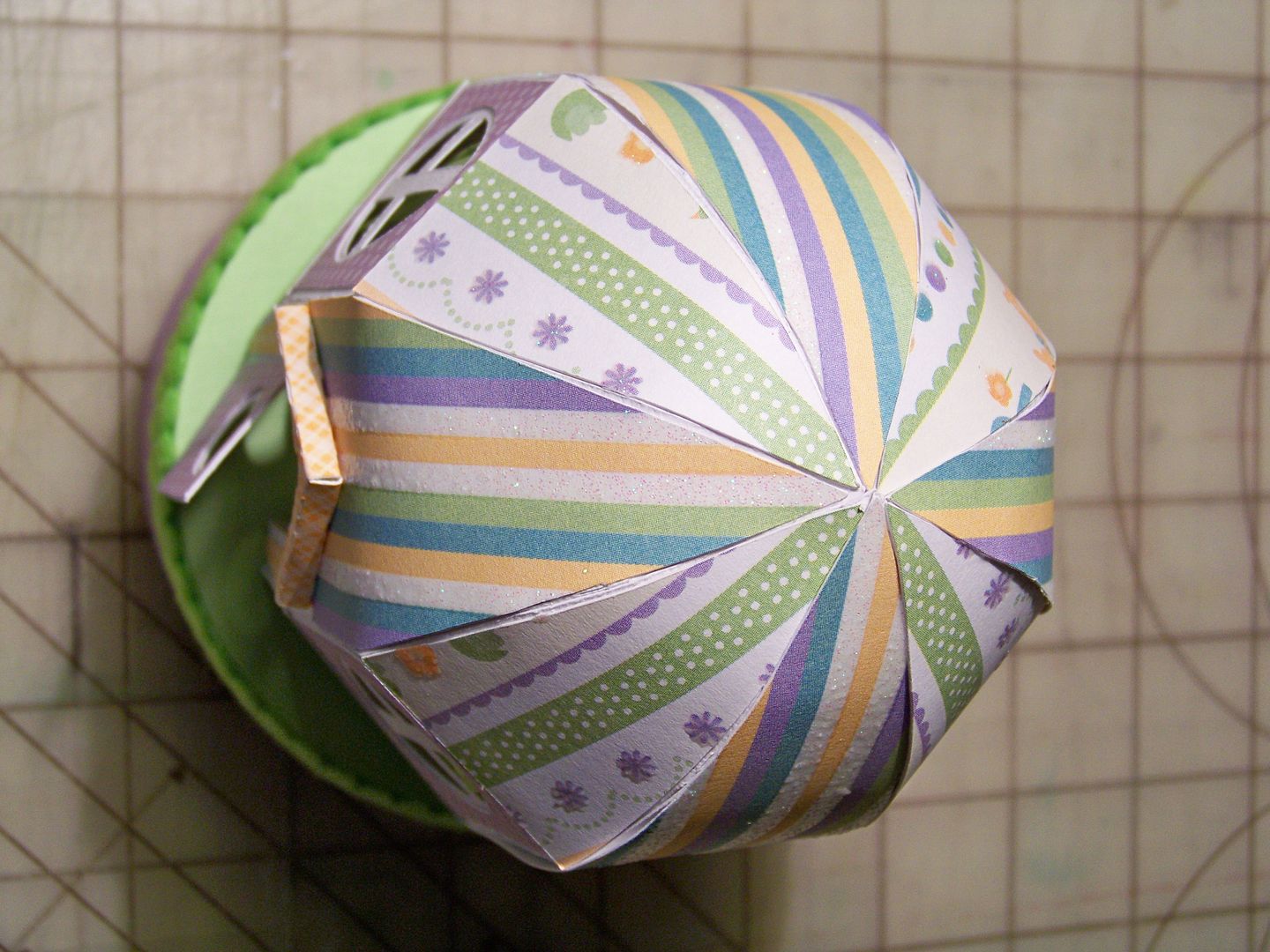
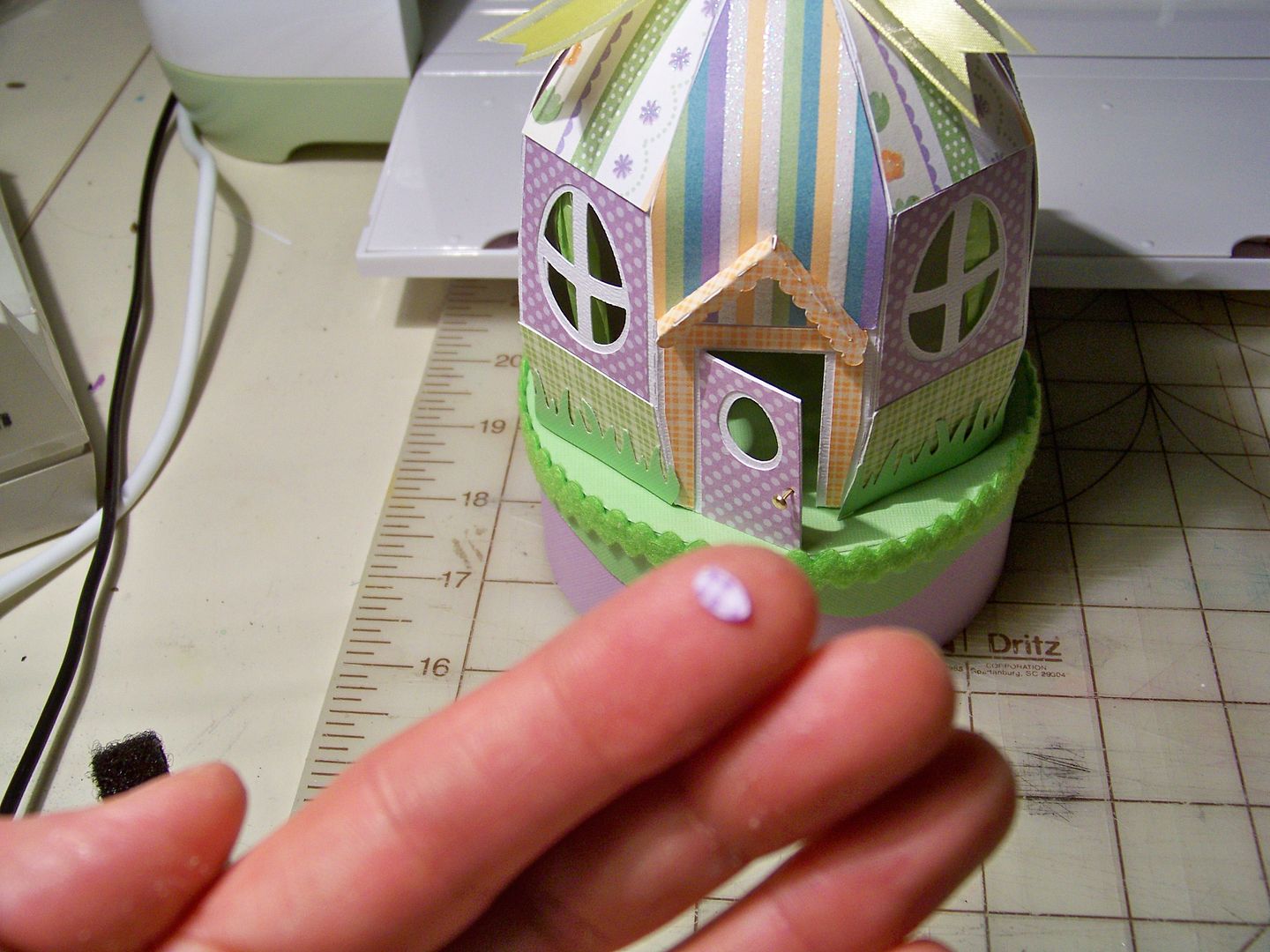
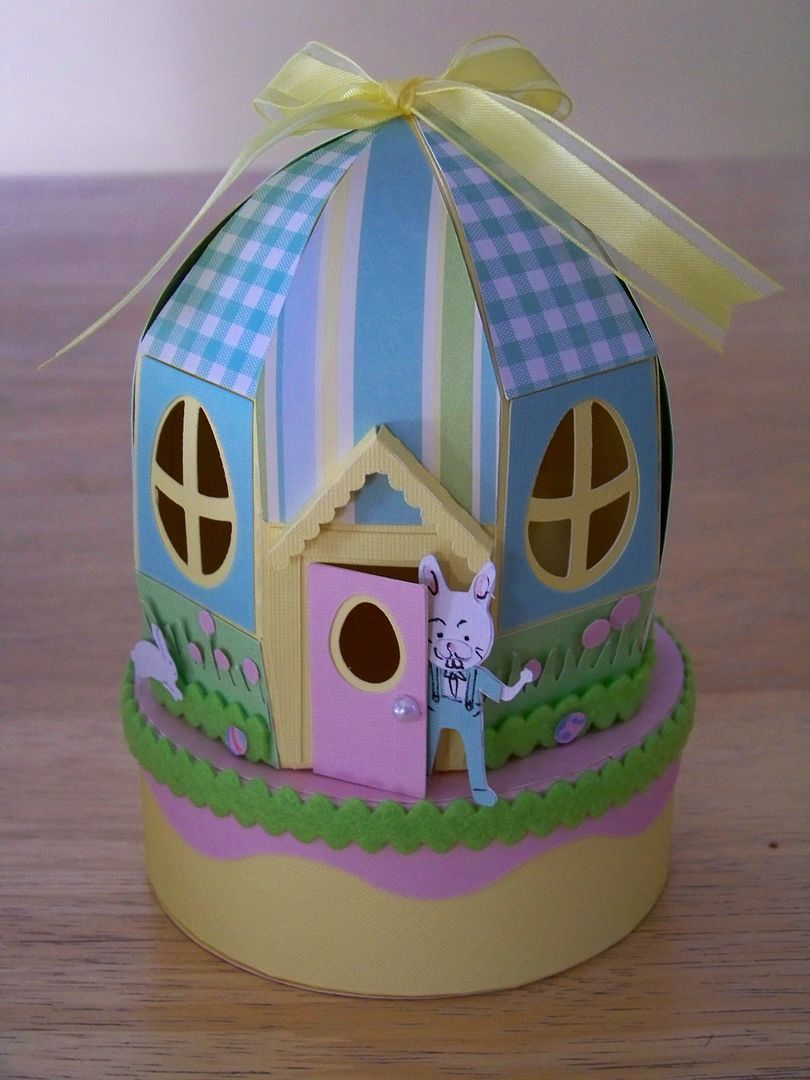
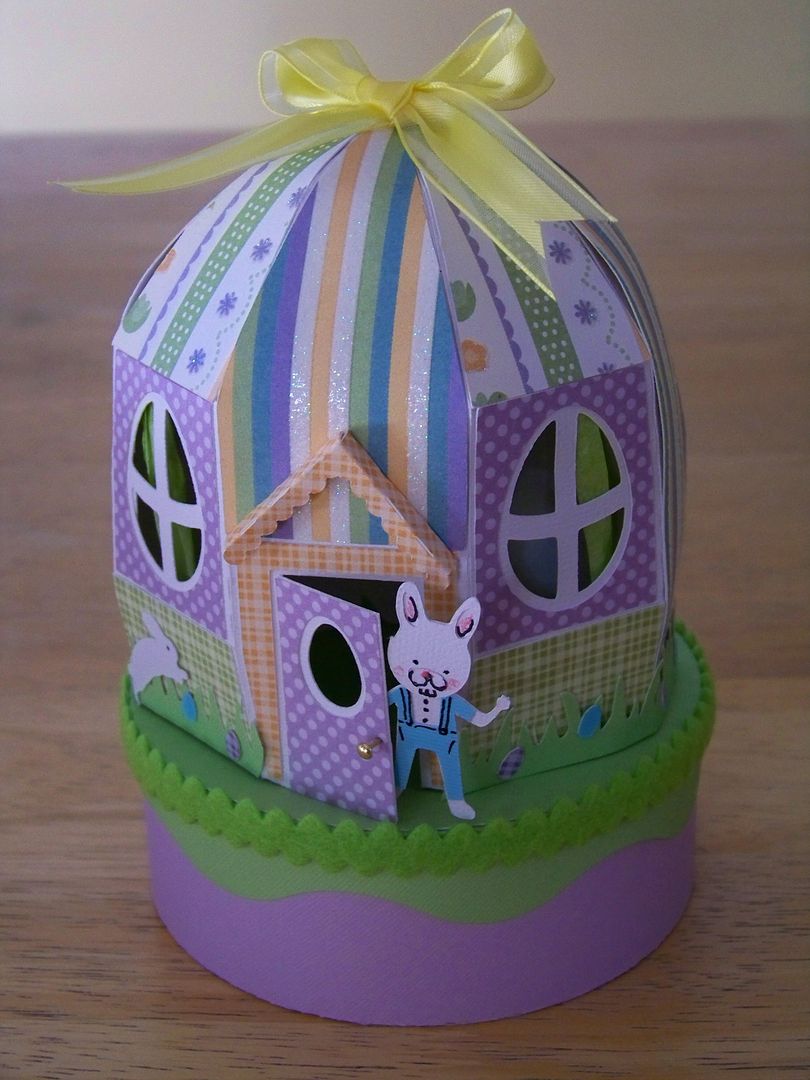
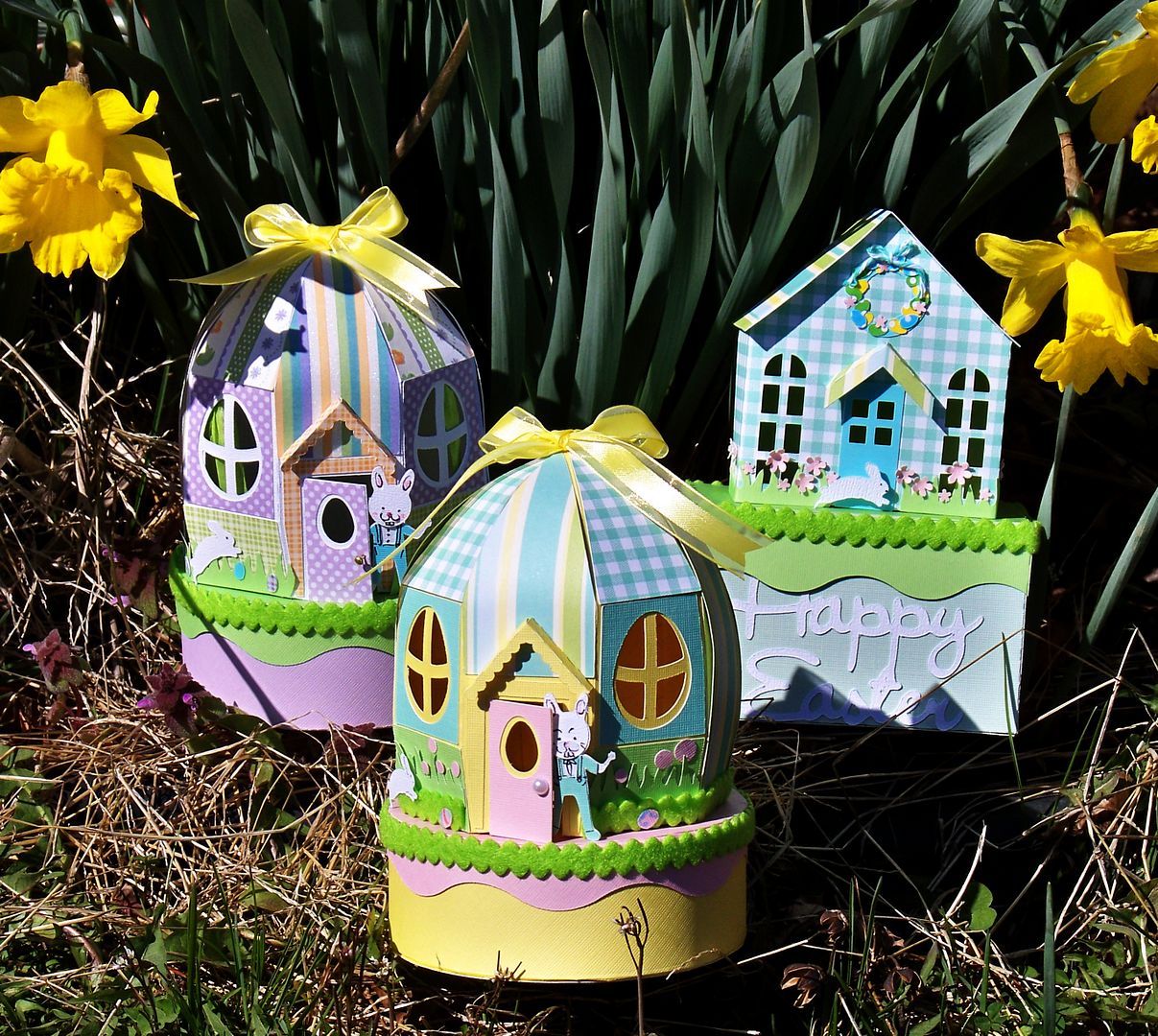
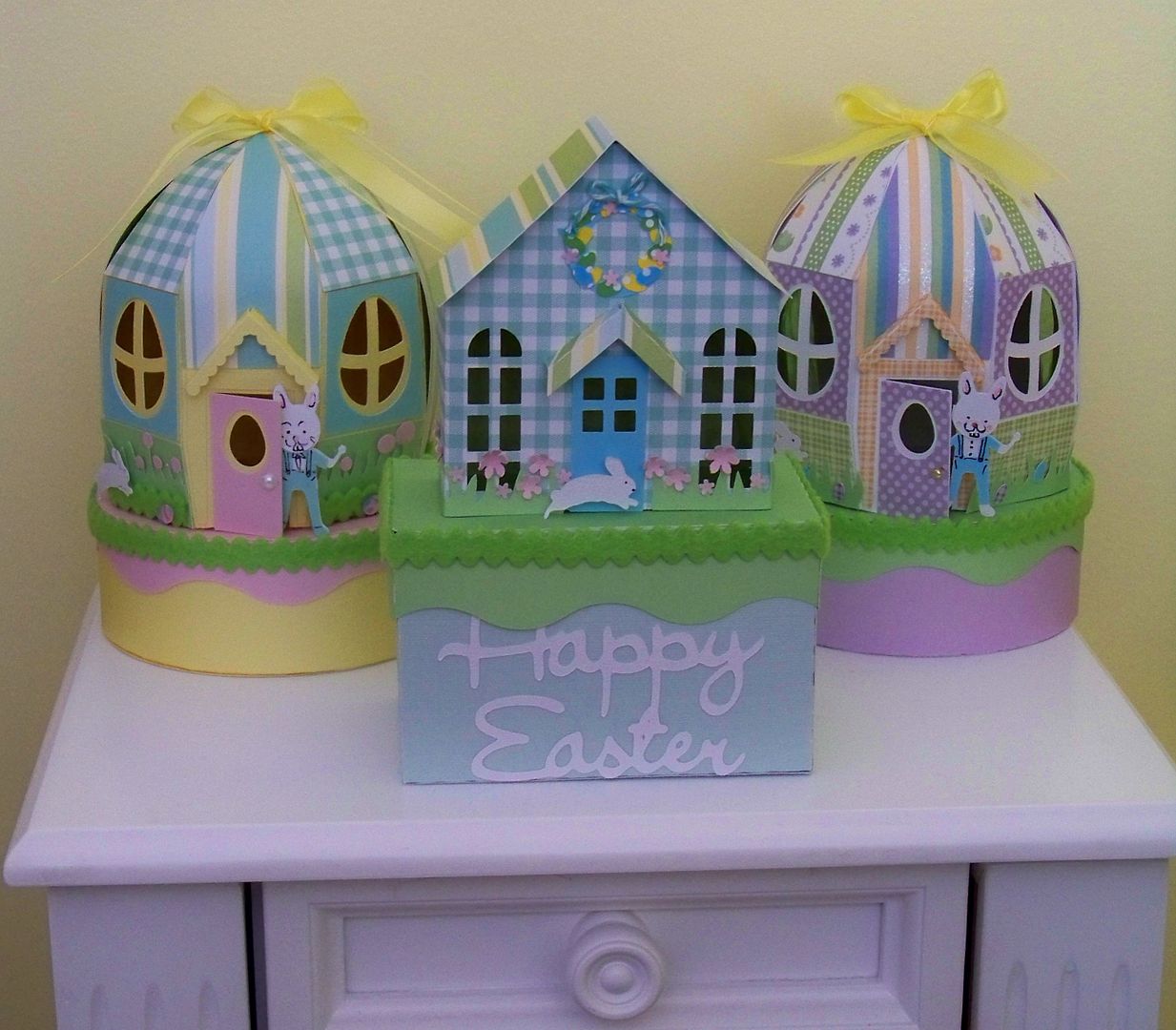
I cut two of the three boxes in the $6.99 file:  the egg house box and the spring house box.  The egg was easier on the second attempt.  I love the clever way the file designer has the crafter form a round shape with scored sections and then has those covered with decorative individual pieces.  I worried about  my imperfection on the top where the sections meet...


...But once it is covered with the strips, any imperfections are covered along with the scoring.


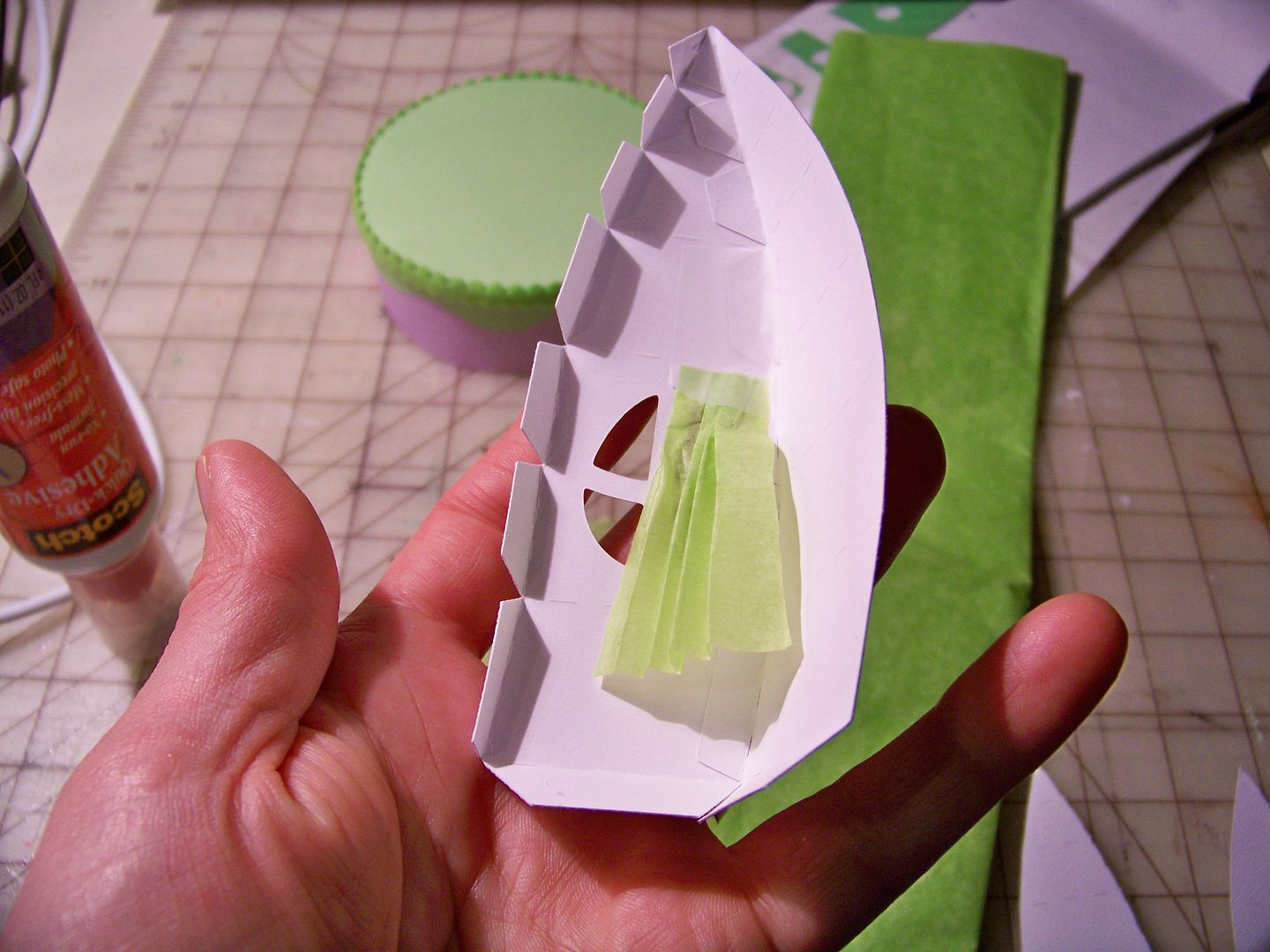
On one of the houses, I added tissue paper curtains to the inside of the window.


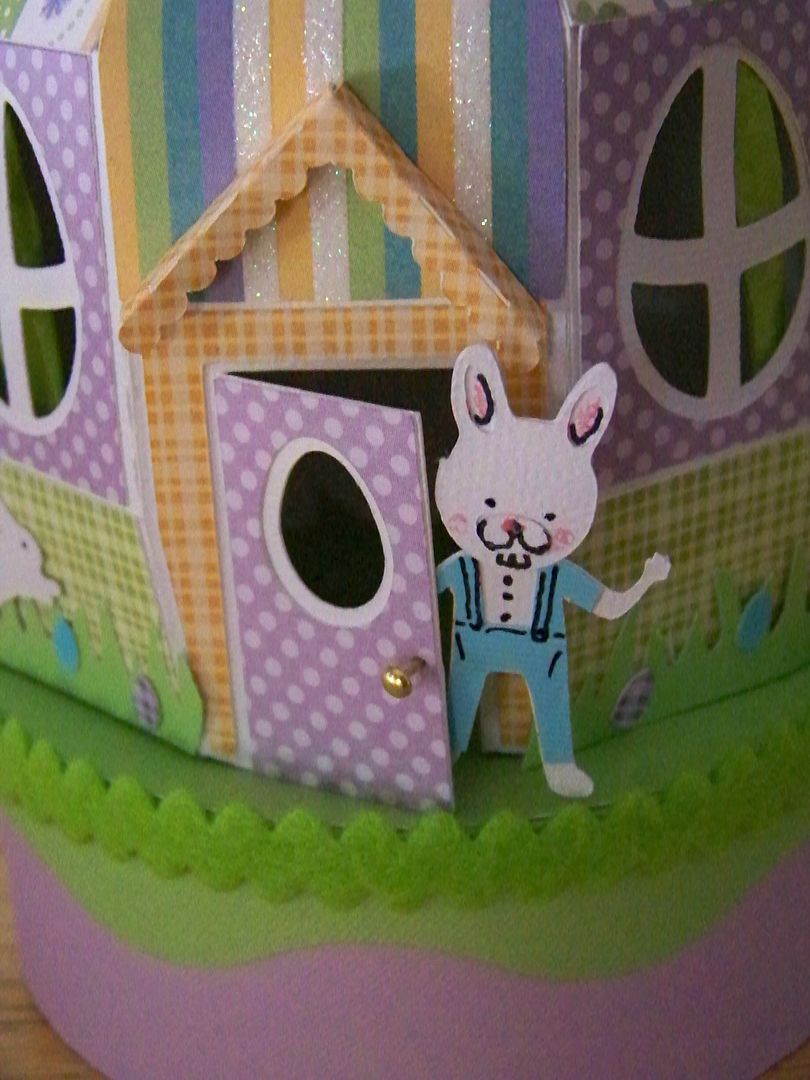
I finished my two egg house boxes using a bunny I made from two carts:  Easter for the head (cut at 3/4") and Create A Friend for the body (cut at 1-3/4").  I did cut these elements on my Expression, not my Explore.  To be honest, the search on the Explore, when you know exactly what you want to cut, is cumbersome.  It is my #1 complaint with the Explore.  If only you could search with cart name and handbook page number!!!  If only the individual cuts were in the order they are in the handbook (like they are in CCR)!!!


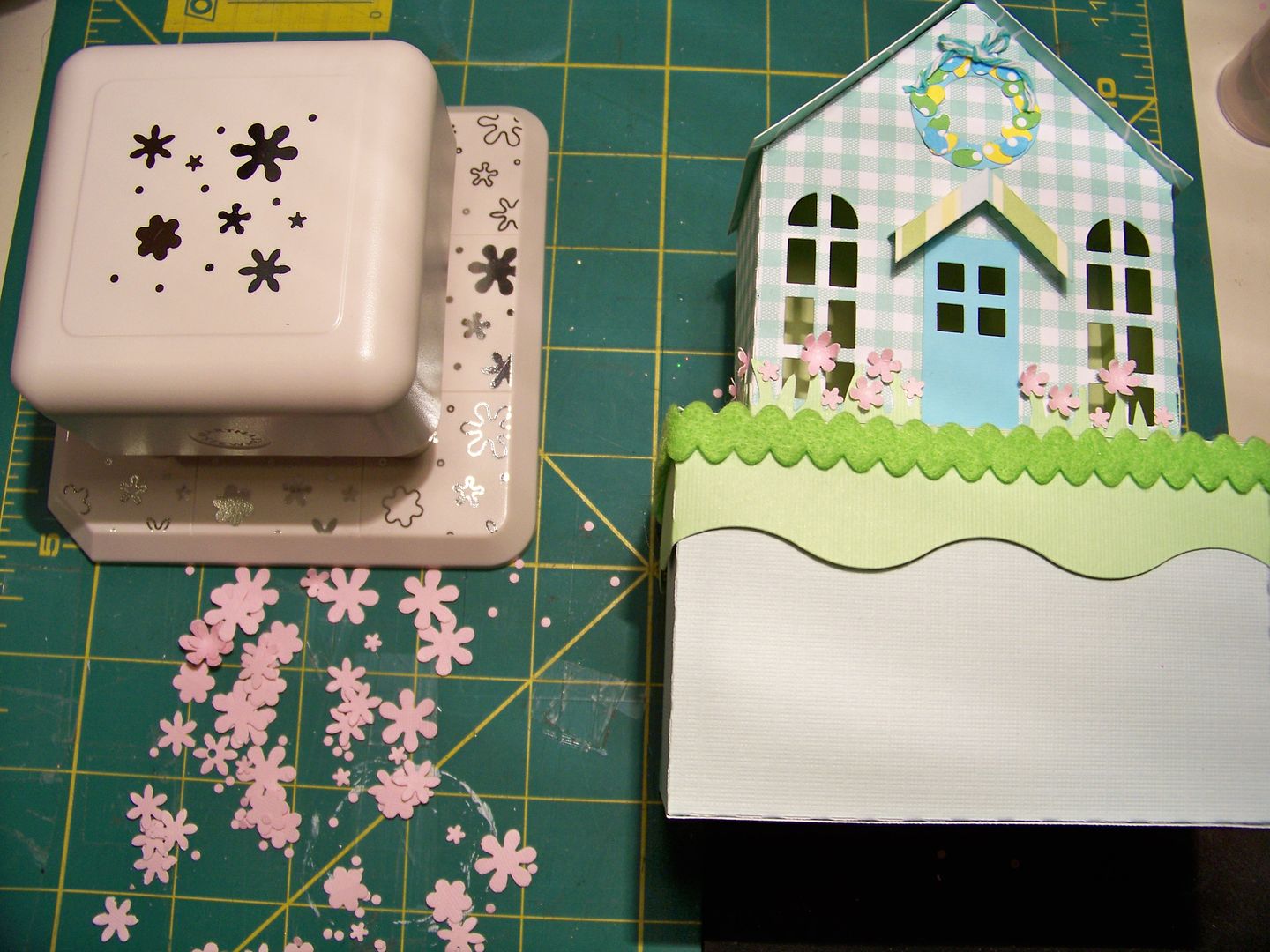
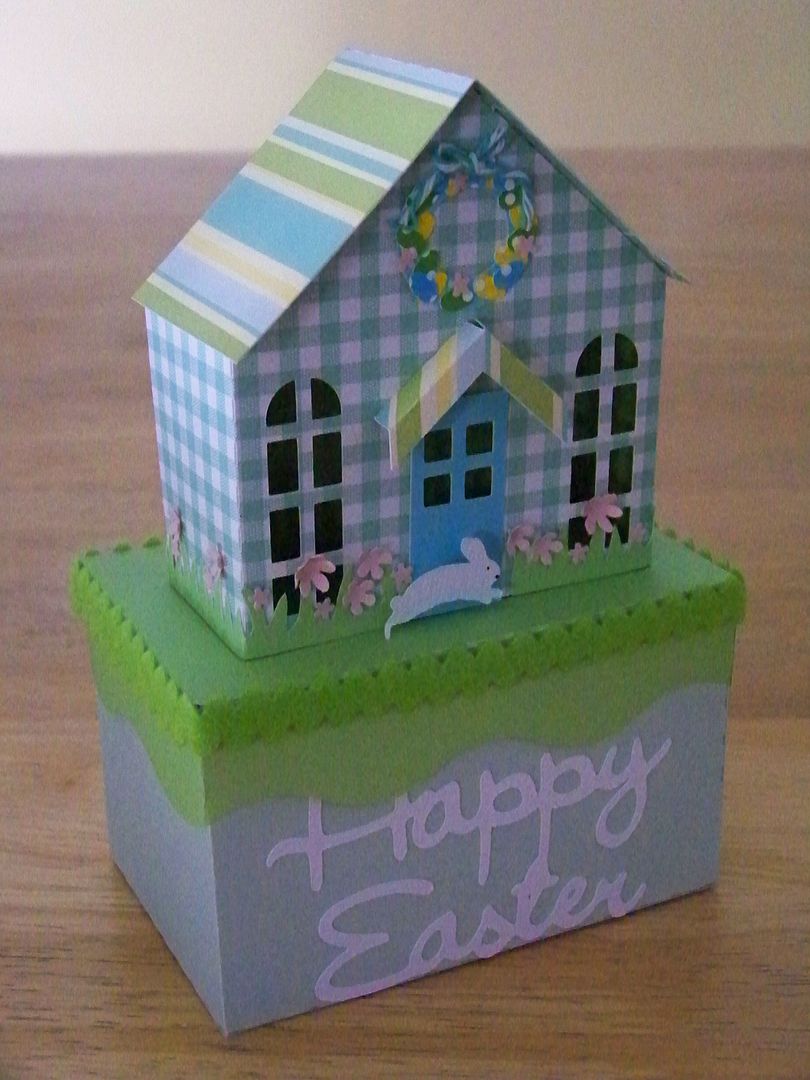
I decorated with felt rick rack and tiny eggs cut at 1/4" from the Cricut cartridge Easter that were placed on the edger-punch cut grass and on the spring house wreath.


Tiny flowers were cut from a Martha Stewart punch.


I used a little bunny, also from the Easter cartridge, cut at 3/4", and Happy Easter text cut from Cricut Holiday Cakes, cut at 2".


So this was a fun stress-reliever because of how easy the files transferred and how wonderful the video directions are from SVGCuts for putting the boxes together!  And I am ahead of the game on my Easter gifts for my mom and mother-in-law!  These boxes are the perfect size for candies, gift cards, soaps, and other small items.  My ten-year-old daughter claimed one for a little Easter decor in her room.

I have lots more to learn with my Explore and I can't wait for my next project!  I do have a few things that I wish could be improved on the Explore.  Aside from the improvements needed on the search that I mentioned above, I also wish the scoring stylus would make a deeper mark, and I wish SVGs would import at native size.  I love that all my computer's fonts as well as all the cart fonts are available to cut now!  I am waiting on the edge of my seat for Print Then Cut, a feature that will replace the Imagine and will make me feel really smart for having all the Imagine cartridges!

I still have lots to learn and am looking forward to making many more projects this spring as I figure out the new features and possibilities... as well as the solutions and work-arounds!

Happy Crafting and Thank You for checking my blog post!


Update:  March 31, 2014
After I crafted and posted this project, I found a really helpful video on SVGCuts on using their files with the Cricut Explore.  Too late for me as I figured it out on my own, but this would have been very helpful to have before I got started!  Sharing a link here in hopes that it will be helpful to you!  Click here!


But wait! There's more! Click 'older posts' above!

But wait!  There's more!  Click 'older posts' above!